SFTP
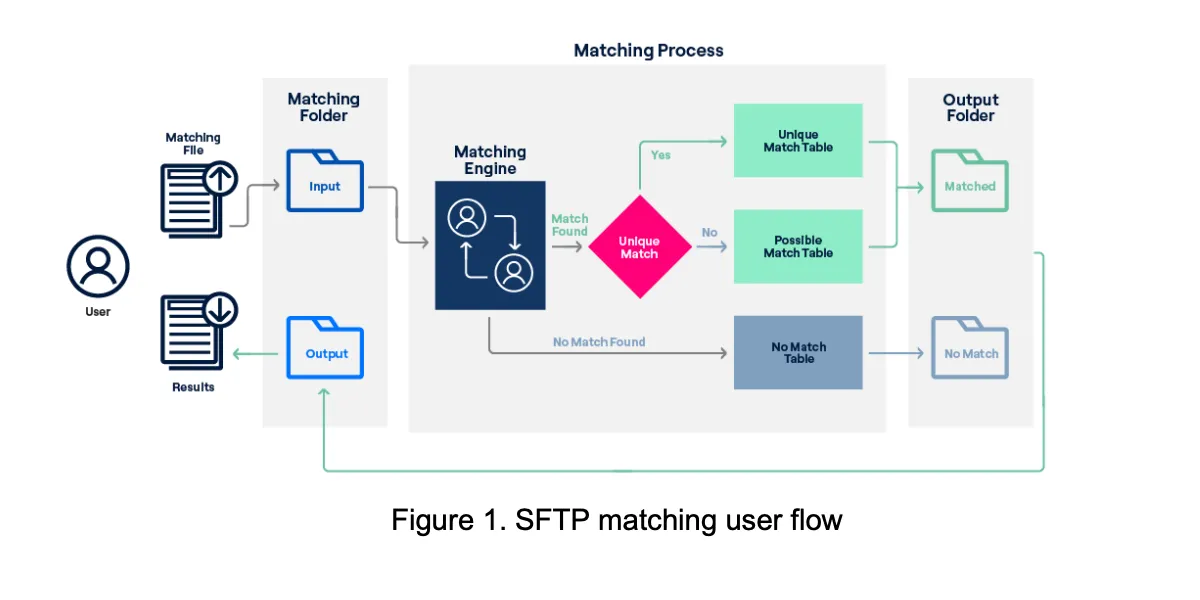
The figure below outlines the SFTP matching user flow:
Connecting to the SFTP Account
For clients who have subscribed to the Matching SFTP service, their Service account credentials will be created and shared directly with them. These login details contain a temporary password that will be emailed to you upon successful creation of the account. You must change the password within 24 hours of receiving the email. This service user account will be used to log in to the Altrata SFTP site to access your matching files.
To clients with already leveraging our Datafeed offering via SFTP, when subscribed to the Matching service, there will be able to see a separate directory for Matching.
Additionally, the SFTP site can be connected to any SFTP client. Note that Altrata only has an SFTP site. There is no FTP site. You will need to use a client that supports SFTP connections.
Connection Details
The following details should be used to connect to the Altrata SFTP site.
Domain Name | Protocol | Port |
|---|---|---|
sftp.altrata.com | SFTP | 22 |
Example: Connecting using WinSCP
1. Open WinScp and start a new session. Enter the hostname as above, make sure the
port is set to 22, and enter your SFTP credentials.
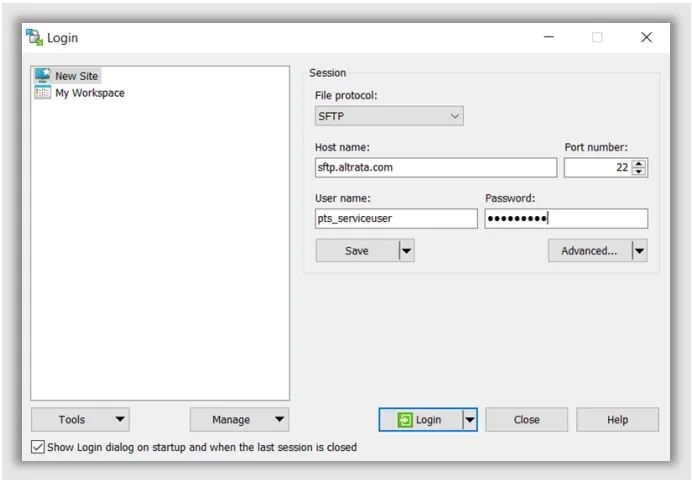
2. Once logged in, you should see folders available to you. There will be two folders with your username for either download or upload.

Folder Structure
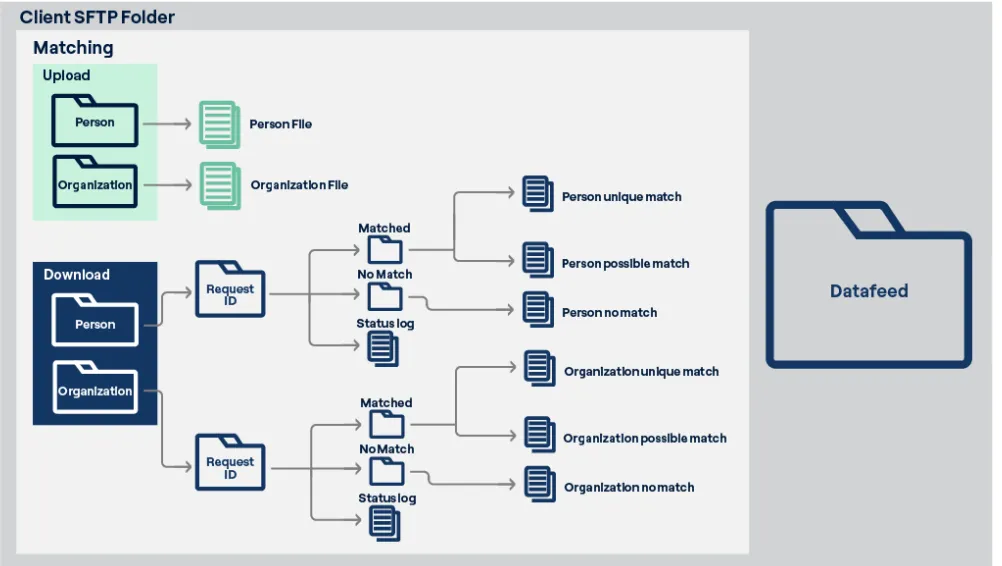
The SFTP server boasts an easily navigable directory layout. Users equipped with the matching service privilege will discover a designated "Matching" directory in their root directory. Nested within this directory, two distinct subdirectories shall exist, namely "{userName}downloads" and "{userName}uploads". For instance, if the user's name is "pts_serviceuser", the corresponding subdirectories would be titled "pts_serviceuserdownloads" and " pts_serviceuser uploads".
The figure below highlights the SFTP folder structure:
Person Matching File Specifications
The inputs required for the Person File are detailed below.
File format: UTF-8, First row must contain ALL column names, pipe (|) delimiter
File limit: 1,000,000 record limit
File header format specification:
Field | Description | Data Type | Required |
|---|---|---|---|
client_supplied_id | This is a unique string identifier for each record that does not change. | String | Yes |
first_name | Person's first name. | String | Yes |
middle_name | Person's middle name. | String | No |
last_name | Person's last name. | String | Yes |
organization_name | The organization the person is associated with. | String | Yes |
role_title | Person's role in the Organization. | String | Yes |
work_email | Person's work email. | String | No |
personal_email | Person's personal email. | String | No |
address_1 | Person's full street address including building, street, and unit details. | String | Yes |
city_1 | Person's address city | String | No |
state_1 | Person's address state | String | No |
zip_code_1 | person's address zip code | String | Yes |
country_1 | Person's address country | String | Yes |
age | Age of person. Integer | Integer | No |
data_of_birth | Person's date of birth. Format in (YYYY-MM-DD) | Integer | No |
family_member_first_name | Person's family member's first name(Parents, Spouse, Siblings, & Children) | String | No |
family_member_middle_name | Person's family member's middle name(Parents, Spouse, Siblings, & Children) | String | No |
family_member_last_name | Person's family member's last name(Parents, Spouse, Siblings, & Children) | String | No |
bx_person_id | boardex_director_id Unique ID assigned to the BoardEx person. Integer | Integer | No |
rs_person_id | Unique ID assigned to the Relsci person. Integer. | Integer | No |
bri_person_id | Unique ID assigned to the Boardroom Insiders person. Integer. | Integer | No |
wx_person_id | Unique ID assigned to the Wealth-X person. | Integer | No |
we_person_id | Unique ID assigned to the WealthEngine person. | Integer | No |
linkedin_profile | LinkedIn profile ID of the person. | String | No |
altrata_id | Unique ID assigned to the Altrata Person. | String | No |
For any file client-supplied ID is a mandatory field along with at least one of the below. Combinations are required to pass the validation.
- First name, Last name and Organization name
- First name, Last name and Zipcode
- Email Address
- LinkedIn Profile
- Any of the Altrata Brand ID's
Organization Matching File
File format: UTF-8, First row must contain ALL column names, pipe (|) delimiter
File limit: 1,000,000 record limit
File header format specification:
Field | Description | Data Type | Required |
|---|---|---|---|
client_supplied_id | This is a unique string that does not change. | String | Yes |
organization_name | Full name of the organization. | String | Yes |
organization_type | Denotes the nature or type of business. | String | Yes |
ticker_primary | Ticker symbol associated with the main stock exchange listing of the organization. A ticker symbol is a unique one-to-five letter code used by a stock exchange to identify a company. | String | No |
email_domain | The email domain that is associated with the organization. | String | No |
head_office_country | The country where the Headquarters of an organization is located. | String | No |
website | The website is associated with the organization. | String | No |
industry_primary | Industry vertical associated with the Relsci organization. | String | No |
rs_organization_id | Unique ID assigned to the Relsci organization. | Integer | No |
bx_organization_id | Unique ID assigned to the BoardEx organization. | Integer | No |
bri_organization_id | Unique ID assigned to the Boardroom Insider organization. | Integer | No |
wx_organization_id | Unique ID assigned to the Wealth-X organization. | Integer | No |
altrata_id | Unique ID assigned to the Altrata organization | String | No |
For any file client-supplied ID is a mandatory field, and at least one of the below combinations, which are required to pass the validation.
▪ Client supplied ID + Any of the foundation IDs.
▪ Client supplied ID+ Organization name.
Upload files for Matching
After preparing the matching input file for upload, follow the steps provided in the "Connecting to SFTP Account" section to access our Altrata SFTP site. Once connected, you have the option to either upload the file or simply drop it into the corresponding folder for matching. Ensure that individual files are placed in the "Person" folder within the "Uploads" directory, while organizational files should be placed in the "Organization" folder within the same "Uploads" directory. Every matching request will have a Unique Request ID generated, which will be emailed to the user after the validation is completed. This Request ID would be the reference for downloading the results after the matching processing is completed.
Validation Checks
File Level Validation- After a user uploads a file via the SFTP site, a series of validation checks are carried out to ensure that the file is suitable for the matching process. The following are the two different validation steps involved:
1. File Inspection
In the validation process, the first step involves checking the file for its format, size compatibility, has all the required headers, etc., before advancing the file for further processing. If the uploaded file has one of the following errors, it will be marked as failed, and a notification will be sent to the user regarding the failure.
Errors & Warnings:
• The file is not a CSV.
• The file path contains invalid characters.
• Unable to determine file size. Please review the file.
• The file size is too large. File size must be 500MB or lower.
• The file is binary. Only CSV files are supported.
• The request limit failure, listed.
• Invalid delimiter '[delimiter]'. The file must be delimited by '|' or ','.
• The file has too many rows. The maximum permitted is 1,000,000, but [number of
rows] rows were found.
• The file is missing all the required headers. Is the header row missing?
• The file is missing the following headers: [Missing headers]
• The file has too many headers. Expected no more than [Number of allowed
headers] headers but found [Number of headers].
• The file has the following invalid headers: [Invalid headers]
2. Limit on Requests per day
The matching service enforces a daily upload limit of 10 valid files for each user. If a user attempts to upload an 11th file for matching on the same day, we will conduct all the necessary validation checks. Subsequently, an email will be sent to the user, detailing the reasons for failure and requesting them to resubmit the file on the following day within the allowed limit. The time for the day is based on UTC Time.
3. Row Level Validation
After passing the initial file validation, the files will undergo row validation. During this step, the data in each file will be read row by row, and we will check for valid data in the required fields necessary for matching. Only the rows that pass validation will proceed to the matching process, while all the rows that fail validation will be returned to the user as part of a "no match" file.
Validation checks on the row:
• String validation – Check for script tags
• All foundation IDs must be numeric.
• Client-supplied ID and Altrata_ID are a string.
• Email validation – Email address must include the @ sign. It must be a full email address, not just the domain.
• LinkedIn validation – LinkedIn ID should be a complete URL.
• Person, Family member name and Organization name validation:
o Minimum 1 character in First name
o Minimum 2 Characters for Last Name
o Minimum 2 Characters for Organization name
• Address Validation:
o Minimum 4 characters in Address
o Minimum 1 character in Zip
o Minimum 2 characters in City
o Minimum 2 characters in State
o Minimum 2 characters in Country
• Duplicate client-supplied IDs will be appended with duplicate1,2..etc. and the results for this will be part of possible matches
Matching Process
Rows that successfully clear the validation phase will undergo a meticulous matching procedure to locate their counterparts within the Altrata dataset. This matching process encompasses various criteria, including but not limited to matching foundation IDs, individuals' professional email addresses, LinkedIn profiles, organization tickers, and names, both for individuals and organizations. The name-matching aspect involves comprehensive checks such as matching against partial names, potential misspellings, and synonyms.
All ID matchings will yield precise and exact matches. Regarding name matching, it can lead to either exact matches, unique matches, or possible matches.
Unique Match: When the match is exact or unique (only one match found) and the match score is more than 90 and less than or equal to 100.
Possible match: When the match found for a record is more than one & a unique match with a match score less than 90.
No match: Match is not identified.
Output Results
Upon the matching process completion, the system will generate pipe (|) delimited CSV files, and these outcomes will be deposited in their corresponding destinations within the Download folder. A folder with the Date of file submission and the Request ID will be created to post the results for each of the matching requests (YYYYMMDD_req_{Request ID}). A pair of matched files will be provided, distinctively presenting unique matches and possible matches. The unique match file shall consolidate outcomes from both exact and unique matches which could be directly ingested. The possible match file will have up to 3 potential matches for person & upto 5 potential matches for Organization we have identified for each record, which will need a manual review of the results before ingestion.
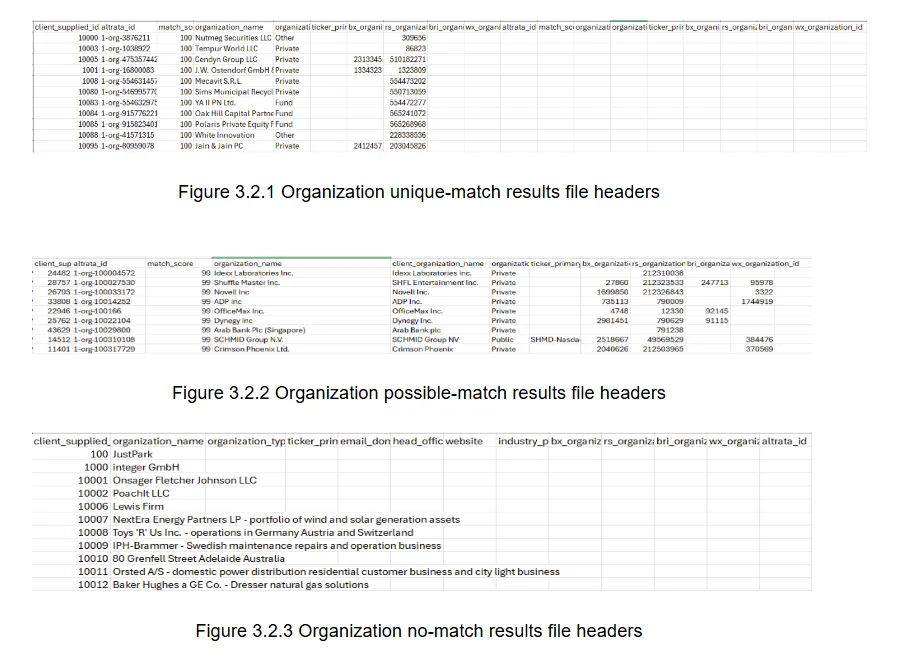
Notably, all the matched results will incorporate a match score assigned to each row. Based on the match score the record will be categoried to Unique, possible or No match results. All these matched results will be presented in a predefined template for both person and organizational files. It is noteworthy that the format of the file containing results without matches will mirror that of the input format. Below are the sample file screenshots for the matching result files.
Person:
- Unique match: A single match with a score between 91 and 100
- Possible match: Multiple matches found, or a single match with a score between 61 and 90
- No match: No suitable match found
Organization:
- Unique match: A single match with a score between 90 and 100
- Possible match: Multiple matches found, or a single match with a score between 70 and 89
- No match: No suitable match found
Person Results



Organization Results
Retention Policy
Compliance with GDPR mandates organizations to establish a well-defined data retention policy. It is crucial to implement measures that ensure personal data is retained only for the necessary duration and securely deleted when no longer needed. Following this requirement, we have applied retention policies to the input & output folders on the SFTP client server and the tables created in the matching engine. This ensures proper management of personal data in accordance with GDPR guidelines.
Input Folder
Files uploaded to the input folder will be retained for a maximum of 7 days. An automated process is in place to regularly remove any input files that exceed this period.
Note: Some of the data will be stored in our database for 30 days (about 4 and a half weeks) and routine jobs are initiated to delete these copies permanently.
Output Folder
The results posted in the output folder will remain accessible for 30 days (about 4 and a half weeks). This period provides users with an ample amount of time to retrieve their data. Additionally, an automated task is executed to remove any results from the output folder that surpass the 30-day threshold.
Matching Status
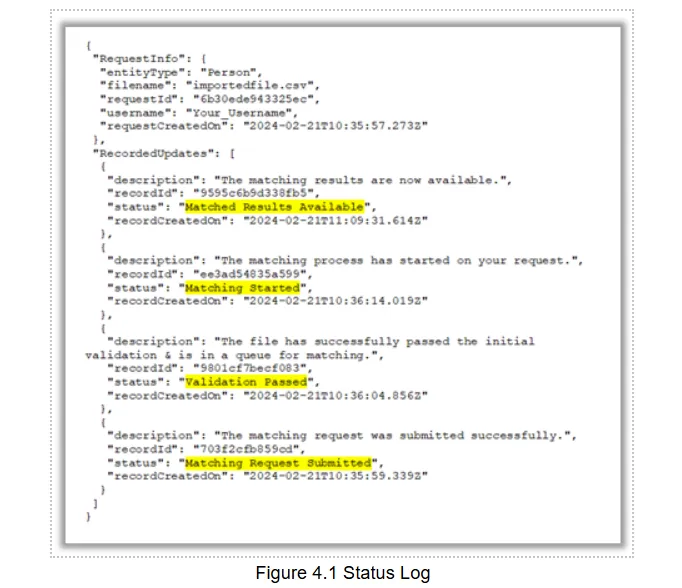
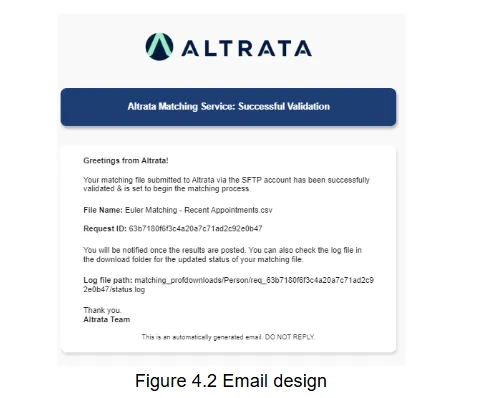
All users who submit matching requests can monitor the progress of their submitted files. The ongoing status can be observed in the log file within the output folder, and they will also receive notifications through email updates.
This is an example text file.
The email shown below is in the format that users will receive at different stages of the matching process.
UTF-8 Files
A UTF-8 file is a text file encoded using the UTF-8 character encoding standard, allowing it to represent a wide range of characters from different languages and scripts efficiently. This is the optimal file format to use in the Altrata Matching Service.
How to Create a UTF-8 file
To create a UTF-8 encoded CSV file from Excel, you can follow these steps:
1. Open Excel: Open the Excel spreadsheet containing the data you want to export.
2. Select Data: Select the range of cells that you want to export to a CSV file. Make sure the data you're exporting doesn't contain any special formatting that you want to preserve, as exporting to a CSV file will only retain the text content.
3. Save As: Go to the "File" menu and choose "Save As" (or equivalent).
4. Choose File Type: In the save dialog box, choose "CSV (Comma delimited) (*.csv)" as the file format.
5. Specify Filename: Specify the filename and location where you want to save the CSV file.
6. Click on "Tools": Depending on your Excel version, you might need to click on a "Tools" or "Options" button in the save dialog box.
7. Select Encoding: In the options/settings window, look for an option to specify the encoding. Choose "UTF-8" as the encoding.
8. Save File: Click "OK" or "Save" to save the CSV file with UTF-8 encoding. The Excel data should now be saved in a UTF-8 encoded CSV file, ready to be used in the Matching Service.