Installation & Configuration
Initial Setup
Complete these steps in order. The whole process typically takes 30–60 minutes, plus background time for the bulk match to finish.
Choose your install audience 🔴 Critical
Before you click Install, decide how you want to control user access to the Altrata app. Salesforce will ask you to pick one of three install options, and your choice has long-term consequences:
If you want to... | Choose |
|---|---|
Roll Altrata out to everyone in Salesforce immediately, with no per-user gating | Install for All Users |
Control which users get access to which Altrata features (admin vs. match manager vs. end user) using Altrata's built-in permission sets | Install for Admins Only |
Limit access to specific Salesforce profiles (e.g., only the "Sales" or "Development" profile) | Install for Specific Profiles |
🛑 Permission sets in Salesforce are additive only. Once you grant a user access through a permission set, you cannot use permission sets to take it away — you can only stop assigning new ones. This means the decision you make at install time is hard to reverse. If you install for All Users and later decide you wanted granular control, you'll have a much harder cleanup job.
🟢 Recommended: If you're not 100% sure which path you need, choose Install for Admins Only. You can always grant access to more users later by assigning permission sets — but going the other direction (revoking access after a broad install) is much harder.
If you chose All Users, you can skip ahead to Step 1, then jump straight to Step 2 (Authenticate). Permission set planning doesn't apply to you.
If you chose Admins Only or Specific Profiles, complete Step 1 (Install) and then proceed to Step 1a — Configure permission sets before continuing.
Step 1 — Install the package 🟡 Required
Click the installation link: Production - https://login.salesforce.com/packaging/installPackage.apexp?p0=04tUc0000018MFhIAM
You'll be prompted to log in to Salesforce.
Confirm you're logging in to the correct environment (production vs. sandbox). Salesforce usernames are unique per environment, so double-check before proceeding.
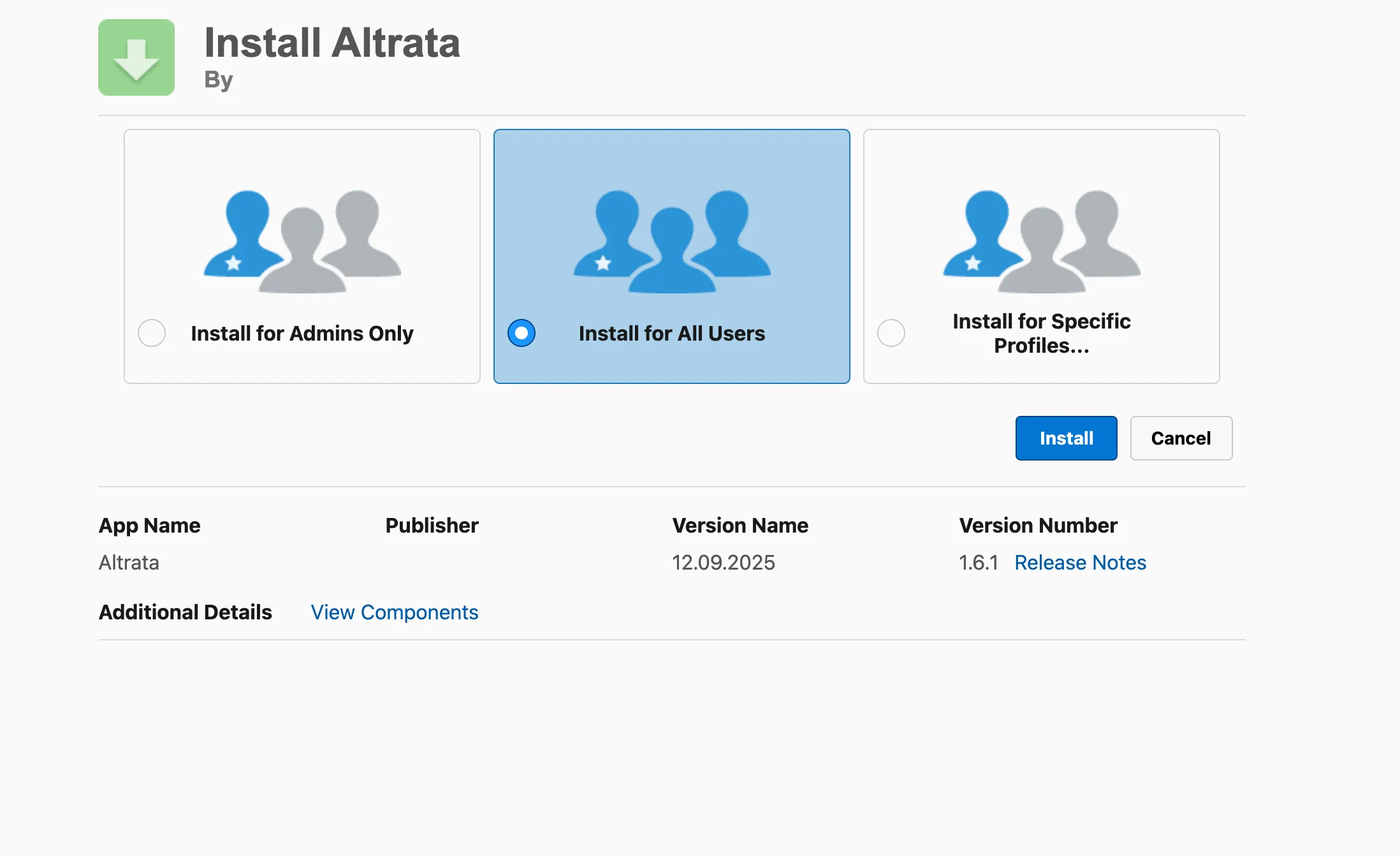
On the install page, select Install for All Users, then click Install.
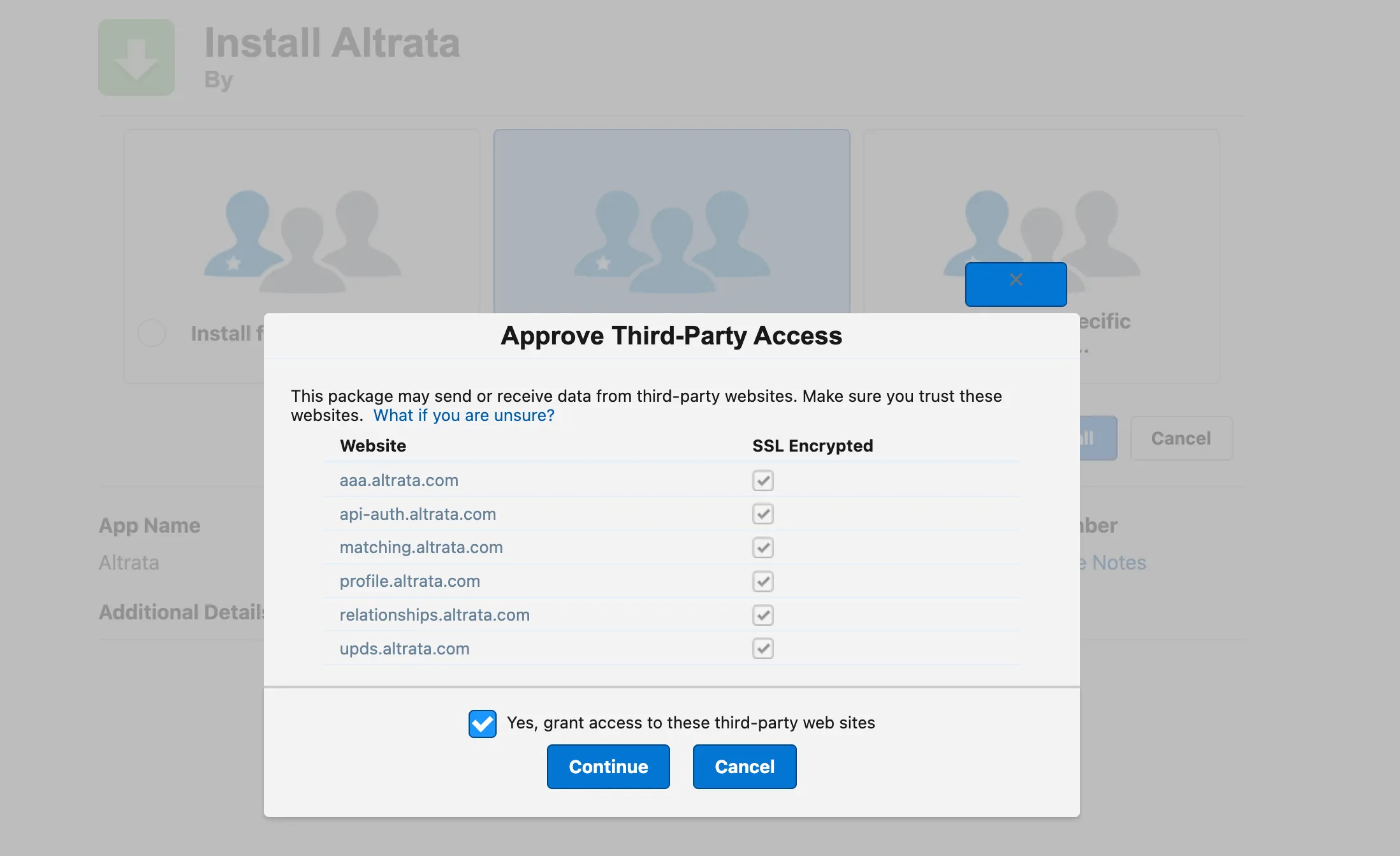
When prompted, approve third-party access by checking Yes, grant access to these third-party web sites, then click Continue.
Wait for the install to complete. It usually takes 5–10 minutes, but can take longer. If you see this message, the install will continue in the background and the Salesforce admin will receive an email when it's done:

About the "Altrata" permission set
You may notice that the Altrata app ships with a single combined permission set called Altrata Permission Set. This is a convenience option that bundles all the access you'd normally get by assigning the five permission sets below.
You can use it if:
- Security isn't a primary concern for your rollout and you want a simpler, faster way to grant access
- You installed for All Users and want a quick way to grant the same access to any new users you add later
You should use the five individual permission sets (Credential Management, App Configuration, Background Job Execution, Match Management, Standard Capabilities) if you want fine-grained control over who can do what, or if your organization requires least-privilege access.
Both approaches work the same way for end users. Pick whichever fits your security posture.
Step 1a - Configure Permission Sets
ℹ️ Skip this section if you installed for All Users. Salesforce automatically grants access to every user in that case, and no further permission configuration is needed.
If you chose Install for Admins Only or Install for Specific Profiles, you'll need to manually grant access to the users who should be able to use the app. The Altrata managed package ships with five permission sets — combine them to give each user exactly the access they need.
🟢 Recommended: Plan permissions on paper before assigning them in Salesforce. Identify who will administer the app, who will manage matches, and who will simply use Altrata data on records.
The Altrata permission sets
Altrata Credential Management
Contains only the permissions required for the initial setup of the Altrata API credentials on the Altrata Authentication tab.
- Scope: API credential creation, update, and verification
- Access area: Altrata Authentication tab (credential entry and validation UI)
- Excludes: Broad administrative rights, data controls, and end-user features
- Typical assignees: Integration administrator, platform admin
🟢 Best practice: Assign temporarily to the integration owner to complete API credential creation or rotation, then remove once setup is verified.
Altrata App Configuration
Contains the permissions required to administer the application post-installation. Limited to Data Controls and Match Settings tabs.
- Scope: Application-level settings, data control settings, configuration on Match Settings tabs
- Use cases: Tuning matching thresholds, enabling and disabling features, managing settings
- Excludes: API credential provisioning (covered by Credential Management)
- Typical assignees: Product owner, Salesforce admin, application administrator
Altrata Background Job Execution
Contains only the permissions required to execute background tasks such as matching and enrichment.
- Scope: Start, monitor, and re-run background jobs (match runs, batch updates)
- Capabilities: Jobs access, job visibility, reschedule and abort
- Typical assignees: Background service user, operations scheduler
🟢 Best practice: Assign this set to a dedicated integration user (not a human user). This keeps scheduling stable, avoids tying jobs to an individual user's license or session, and produces a clean audit trail.
Altrata Match Management
Contains only the permissions required to manage, accept, or reject possible match results.
- Scope: Review candidate matches, accept and reject possible matches
- Capabilities: Access to Match Management UI, filtered record views
- Excludes: Starting background jobs, changing global configuration
- Typical assignees: Data stewardship team, CRM data quality leads
Altrata Standard Capabilities
Contains all the permissions required to interact with the non-administrative functions of the application.
- Scope: Everyday end-user workflows and UI navigation
- Capabilities: Manual matching, Advanced Search, Pathfinder, profile viewing, and other day-to-day features
- Excludes: Administrative configuration, credential handling, job orchestration
- Typical assignees: General users, analysts, relationship managers
Additional Salesforce permissions
Most user roles also need standard Salesforce permissions on the objects they'll work with:
- Customize Application (system permission, for admins)
- Read access to Lead, Contact, and Account
- Write access to Lead, Contact, and Account
- Create access to Lead, Contact, and Account
- Modify Metadata Through Metadata API Functions
How to assign permission sets
- In Salesforce, go to Setup → Users → Permission Sets.
- Find the relevant Altrata permission set (e.g., Altrata Credential Management).
- Click Manage Assignments → Add Assignments.
- Select the users who should receive this permission set and click Assign.
- Repeat for each permission set / user combination from the model you chose above.
Best practices
- Assign Credential Management sparingly. This permission set lets a user enter or change Altrata API credentials, which controls the integration's data access. Limit it to the smallest possible group — ideally one or two trusted admins.
- Don't give Standard users admin permission sets. End users only need Standard Capabilities plus Salesforce object permissions. Bundling admin sets in for convenience creates audit and security risk.
- Document your choice. Record which model you chose and which users hold each permission set. This makes future audits, role changes, and offboarding much easier.
Troubleshooting access issues
If a user reports they cannot do something they expect to be able to do, use the table below to identify which permission set is likely missing.
Symptom | Likely fix |
|---|---|
Cannot enter API credentials | Ensure the user has Credential Management and access to the Altrata Authentication tab |
Cannot edit Data Controls | Confirm App Configuration is assigned, and verify the user has visibility to the Data Controls and Match Settings tabs |
Background job fails to start | Assign Background Job Execution to the user (or to the dedicated service account) and try again |
Cannot accept or reject possible matches | Verify Match Management is assigned, and confirm record-level sharing grants the user visibility to the records in question |
Missing day-to-day app features | Assign or reassign Standard Capabilities and confirm object and tab visibility through the user's profile |
ℹ️ Profiles and permission sets work together. Profiles control baseline object access and tab visibility. Permission sets layer additional rights on top. If access still fails after assigning the right permission set, validate the user's profile-level object permissions and sharing rules.
Permission sets FAQ
Can one user hold multiple permission sets? Yes. You can combine sets to match a user's responsibilities while keeping privileges narrowly scoped. The Models A, B, and C above are common combinations, but you can build your own as needed.
When should I remove Credential Management? Immediately after API credential setup is completed and the connection has been validated. Credential Management is meant to be temporary, not a permanent assignment.
Do end users ever need App Configuration? No. App Configuration is for administrators managing application settings. End users only need Standard Capabilities for their day-to-day work.
Step 2 — Authenticate the integration 🟡 Required
You won't be able to view or sync Altrata data until the package is authenticated with your Altrata service credentials.
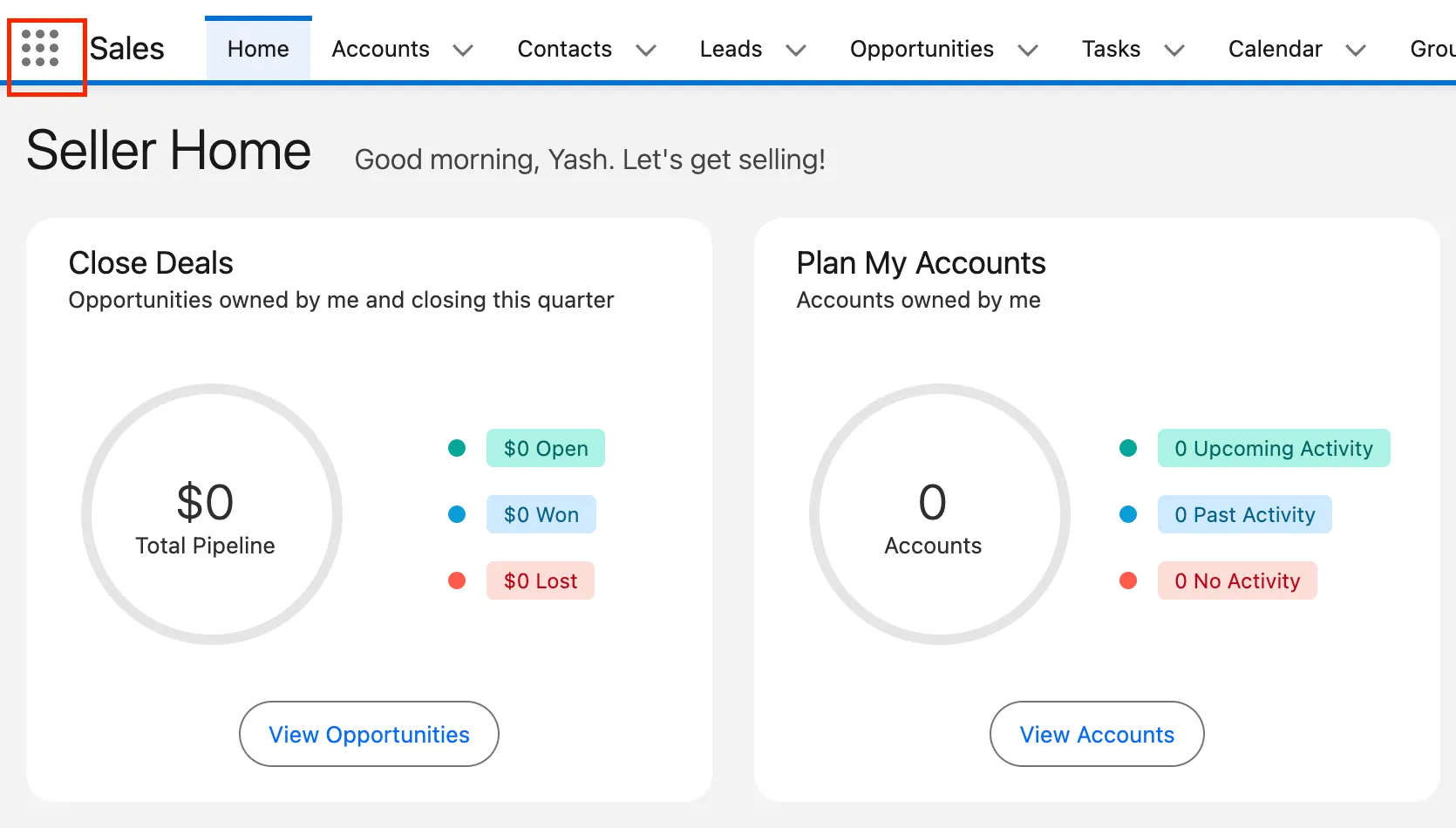
In Salesforce, click the App Launcher (the 9-dot icon in the top-left).
In the search box, type Altrata Setting and click the result.
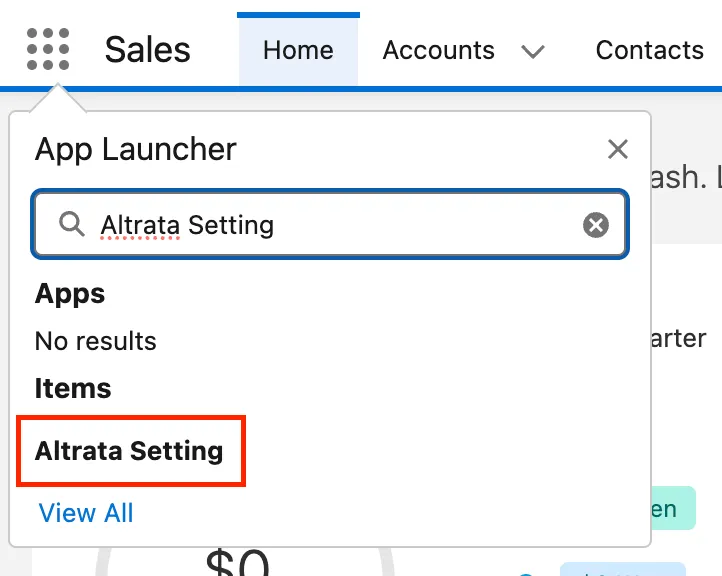
If you cannot locate Altrata Settings within the App Launcher, ensure the application has been installed correctly and that you have the permissions to access.
Open the Altrata Authentication tab.
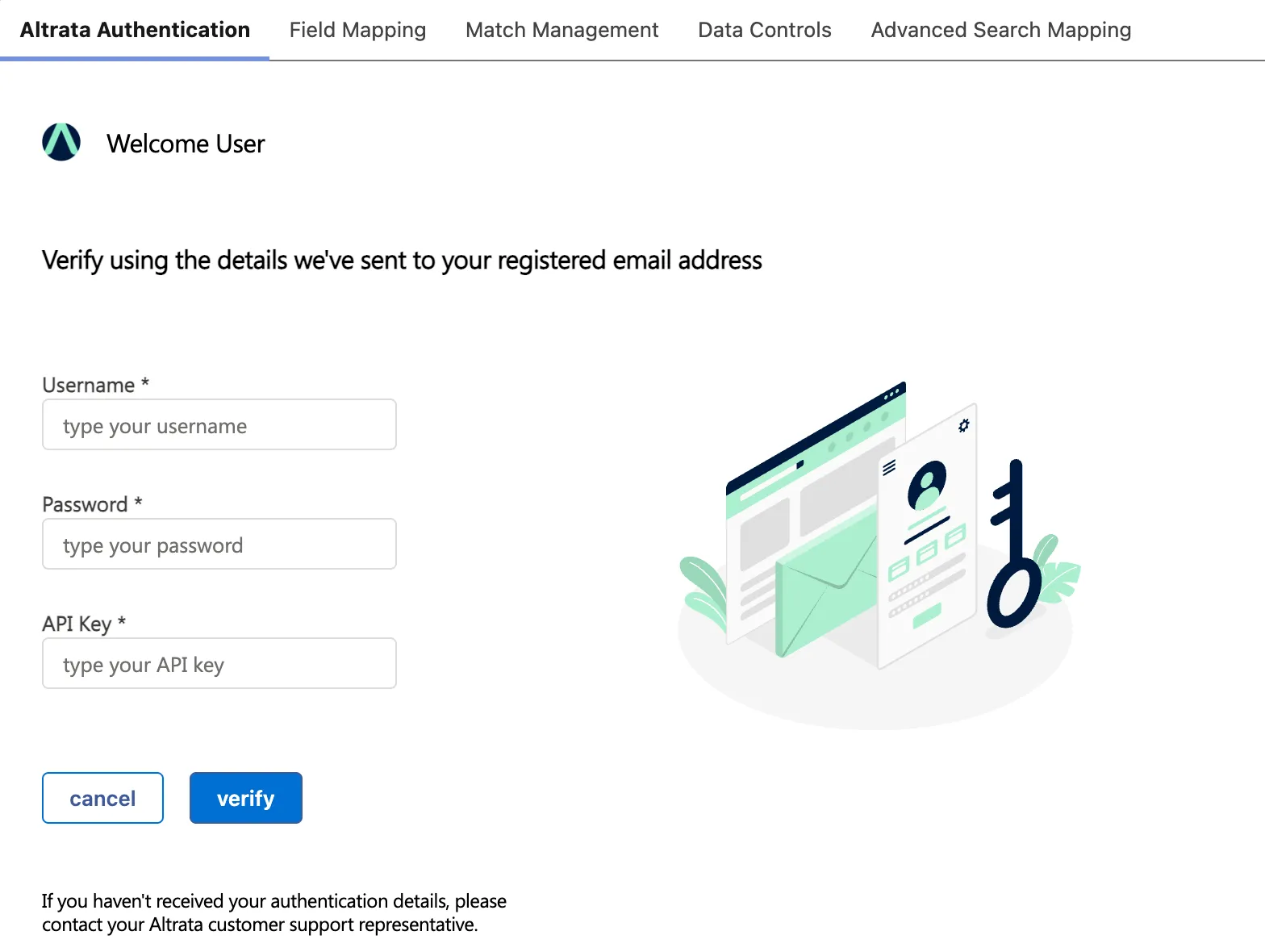
Enter your service account Username, Password and API key. The API key should be received via a separate email.
Click Verify.
If verification fails, double-check that yo've entered each value exactly as provided. If the error persists, contact your customer support representative.
Step 3 — Configure Field Mapping 🔴 Critical
Match Settings is where you tell the integration which Salesforce fields to use for matching (Field Mapping) and which Salesforce records are eligible for matching (Data Filters). Getting both right before you run bulk matching is the difference between a smooth rollout and a frustrating cleanup project.
Why this step is critical
Field Mapping tells the matching algorithm which Salesforce fields to read from when finding the best Altrata profile for each record. The richer your mapping, the better the match rate and match quality — map as many fields as possible.
Matching requires at least one of these four methods to be fully configured:
- First Name + Last Name + Organization Name — all three mapped together
- First Name + Last Name + Zip Code — all three mapped together
- First Name + Last Name + Any Address field — all three mapped together
- Email — at least one email field mapped
- LinkedIn URL — LinkedIn profile URL mapped
- Foundation brand Person/Organization ID — a profile ID from another Altrata brand (BoardEx, RelSci, or Wealth-X)
You can configure multiple methods simultaneously — and should, when possible. Records that satisfy more methods produce stronger, higher-confidence matches.
🔴 Migrating from a foundation app (BoardEx, RelSci, or Wealth-X)? Read this carefully.
If your organization is migrating from a legacy Altrata foundation app — BoardEx, RelSci, or Wealth-X — it is strongly recommended to map your existing foundation brand Person/Org ID to the corresponding Altrata field on each object.
The mapping pairs are:
- BoardEx Individual ID (Salesforce) → BoardEx Person ID (Altrata)
- BoardEx Organization ID (Salesforce) → BoardEx Organization ID (Altrata)
- RelSci Entity ID (Salesforce) → RelSci Person ID (Altrata)
- RelSci Entity ID (Salesforce) → RelSci Organization ID (Altrata)
- Wealth-X Dossier ID (Salesforce) → Wealth-X Person ID (Altrata)
Why it matters: every record already matched in your foundation app has a foundation brand Person / Org ID stored in Salesforce. Mapping that ID into Altrata tells the matching engine "this record is already known — preserve the existing match." Without this mapping, the bulk match starts from scratch and you risk:
- Records re-matching to a different Altrata profile than they had in the foundation app
- Duplicate matches across legacy and new data
- Loss of identity continuity in reports, dashboards and downstream automations
- Manual cleanup work to reconcile mismatches after the fact
Action — before running bulk matching:
- Open Field Mapping in the Altrata app.
- For each object you use (Leads, Contacts, Accounts, Person Accounts), locate the foundation brand Person ID field on the Altrata side.
- Map it to the Salesforce field that currently stores your foundation brand IDs.
- Save each object tab.
If you're not sure where your foundation brand Person IDs live in Salesforce, check with the admin who managed your previous foundation app or contact [email protected] for help locating them.
How to configure Field Mapping
- From the Altrata app, open Match Settings → Field Mapping.
- By default, you'll see three object tabs: Leads, Contacts and Accounts. If your instance has Person Accounts enabled, Person Accounts appears as a fourth tab. (Person Accounts are not required.)
For each object, review and map fields:
- Use the on-screen guidance at the top of the page to confirm at least one of the four matching methods is fully configured.
- Map any foundation brand ID fields (BoardEx, RelSci, Wealth-X) if you're migrating from one of those apps — see the callout above.
- Where the Altrata data model has multiple variants of a field (e.g., separate personal and professional email fields), map each to the most appropriate Salesforce field. If your Salesforce instance only stores one variant, map it to whichever Altrata field best reflects your data.
Save your changes on each tab.
3b. Data Filters 🟢 Recommended
Data Filters let you control which Salesforce records are eligible for Altrata matching on a per-object basis. Without filters, every Lead, Contact, Account, and Person Account in your instance is considered for matching — which can produce noise, unintended bulk matches, and wasted match capacity on records that don't need enrichment (e.g., closed-lost leads, internal test records, archived contacts).
Filters apply before the next bulk match begins and improve match quality by narrowing the eligible record pool to what's commercially relevant.
How to configure Data Filters
- From the Altrata app, open Match Settings → Data Filters.
- For each object — Contact, Lead, Person Account, Account — enter a filter expression in the input field.
- Click Save Changes.
Filters take effect on the next scheduled or manual bulk match — they do not retroactively unmatch records that have already been matched.
Filter syntax
Data Filters use a SOQL WHERE clause expression (without the WHERE keyword itself). Reference any standard or custom field on the object, combine clauses with AND / OR, and use standard Salesforce operators (=, !=, IN, LIKE, etc.).
SOQL filter examples
Don't match Household Accounts:
Match only active Contacts with a corporate email domain:
Exclude closed-lost or disqualified Leads:
Limit Person Accounts to a specific region:
Combine multiple criteria — high-value, recently active Contacts:
⚠️ Validate filter expressions before saving. Invalid SOQL will be rejected when you click Save. Test complex expressions in Salesforce Developer Console or Workbench first if you're unsure.
🟢 Best practice: start with broad filters that just exclude obvious junk (deleted records, test data, closed-lost), run a bulk match, and tighten from there based on what you see in Match Management. Over-filtering on the first pass risks excluding records you actually wanted matched.
Match Settings checklist
Before moving to the next step, confirm:
- At least one of the four matching methods is fully configured on every object (excluding the Account object) you use
- If migrating from BoardEx, RelSci, or Wealth-X: the foundation brand IDs are mapped on every relevant object
- If your records hold both personal and professional emails: each is mapped to its corresponding Altrata email field
- Data Filters have been reviewed for each object — even if you choose to leave them blank, that should be a deliberate decision
- You've clicked Save on every Field Mapping object tab and on Data Filters
Step 4 - Configure Page Layouts 🟡 Required
By default, your Salesforce pages will not include Altrata components. Adding these components is critical to view Altrata data on Salesforce page layouts for the supported objects.
The following instructions assume you are leveraging Salesforce Lightning. If you are leveraging Salesforce Classic please contact [email protected].
Configuring the Altrata Tab
To include the Altrata components on your Lead, Contact, and/or Person Account record pages, begin by navigating to the relevant record page. This must be done for each page layout individually where Altrata data will be displayed.
If you have multiple page layouts for a single record type, verify you are modifying the correct page layout.
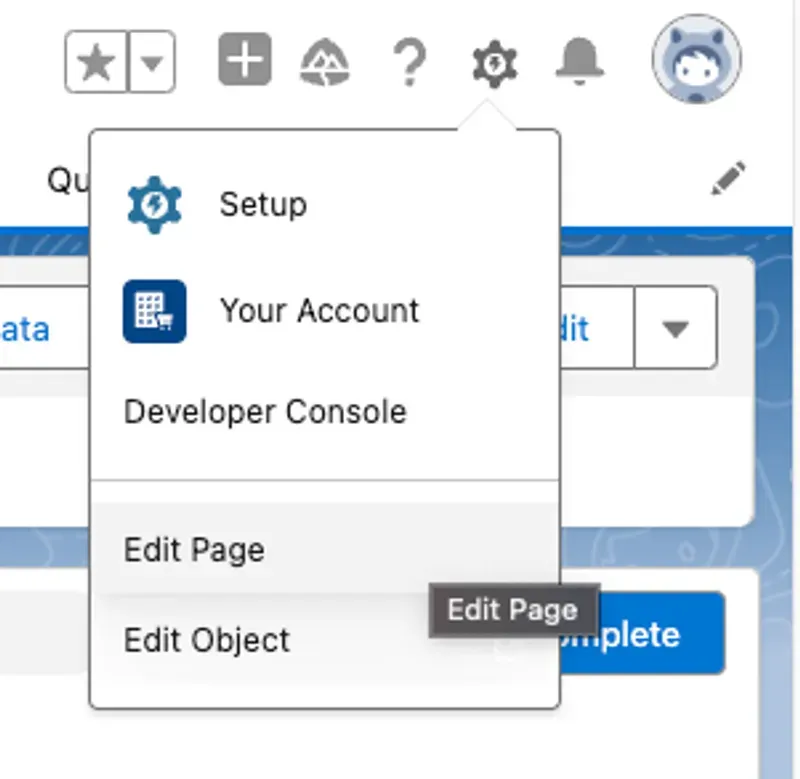
Once on the record page, click the Gear Icon in the top right corner. Click Edit Page.
As shown below, click on the whitespace next to your existing tabs. This will open a prompt to create a new tab.
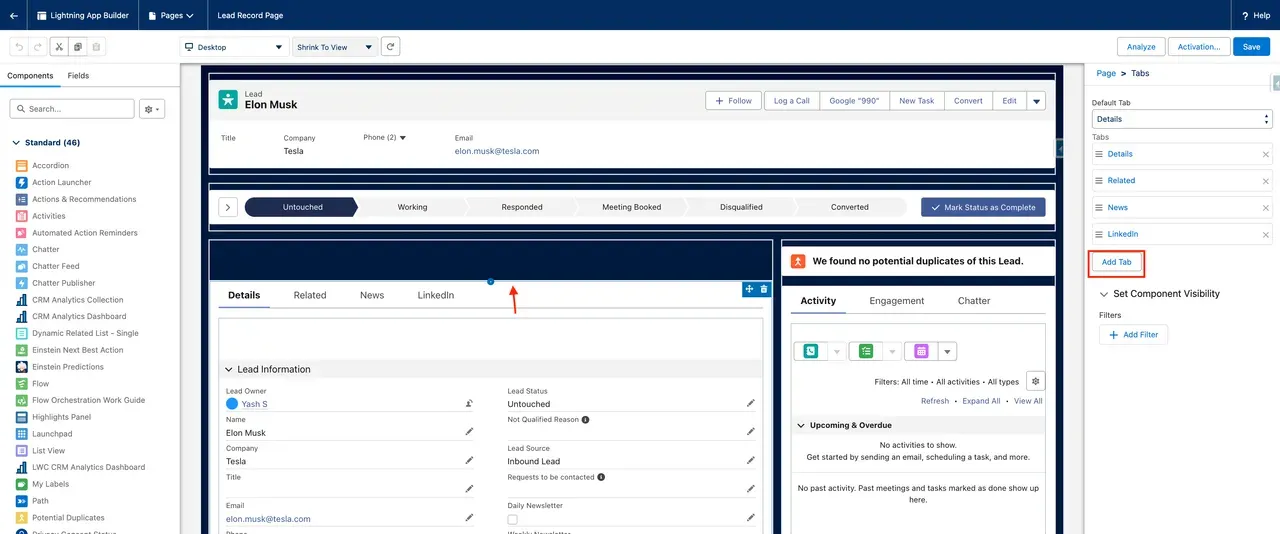
Click on the Add Tab button on the right rail as show above. By default, a new Details tab will be created. Click the newly created Details tab at the bottom of the list.
Be careful not to edit your existing Details tab! Only edit the tab at the bottom of the tab list.
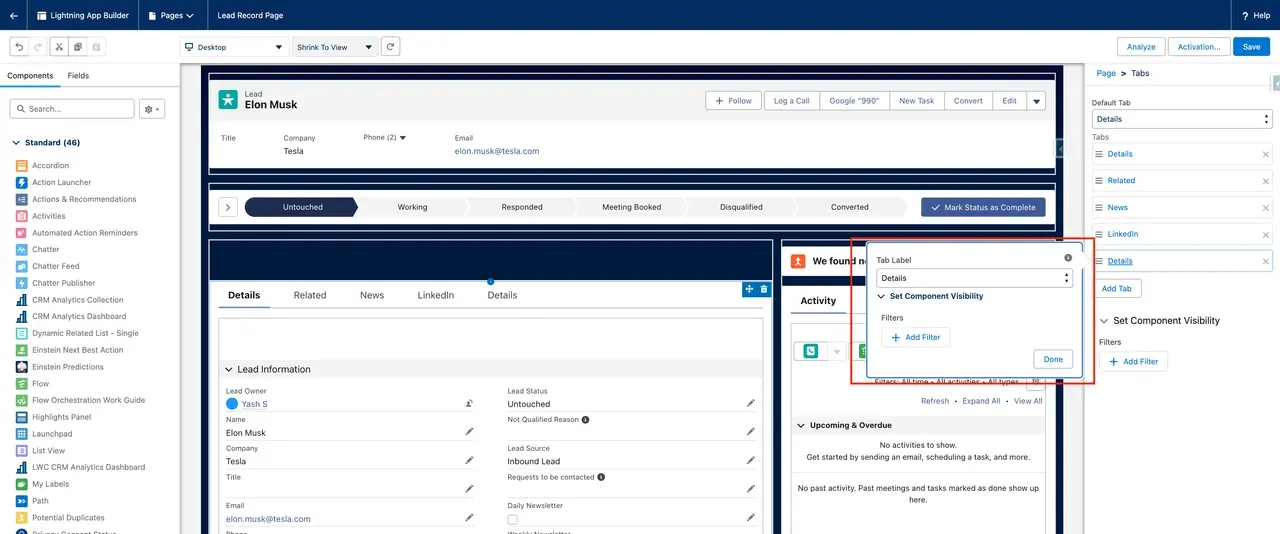
Within the Tab Label dropdown, select Custom at the top of the list. We recommend naming this tab Altrata. Click Done.
You should now have a new tab named Altrata at the bottom of the list.
Save the page layout
Configuring Page Components
Now that the tab has been created to house Altrata elements, those elements may be dropped on the relevant page layouts. This must be done for each page layout individually, where Altrata data will be displayed.
Manual Matching Components
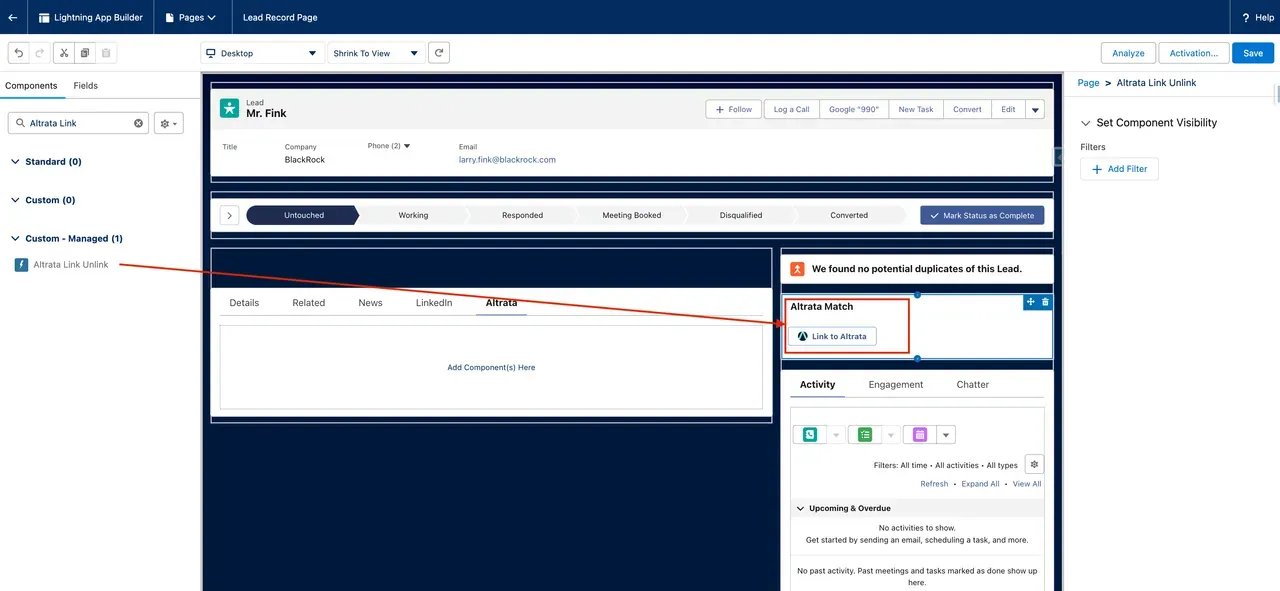
To enable manual matching on a per-record basis, the Altrata Link Unlink must be placed on the page. While this is optional, it is highly recommended that you include this element in your page layouts for ease of use.
In the left-hand rail search bar under Components, type Altrata Link Unlink.
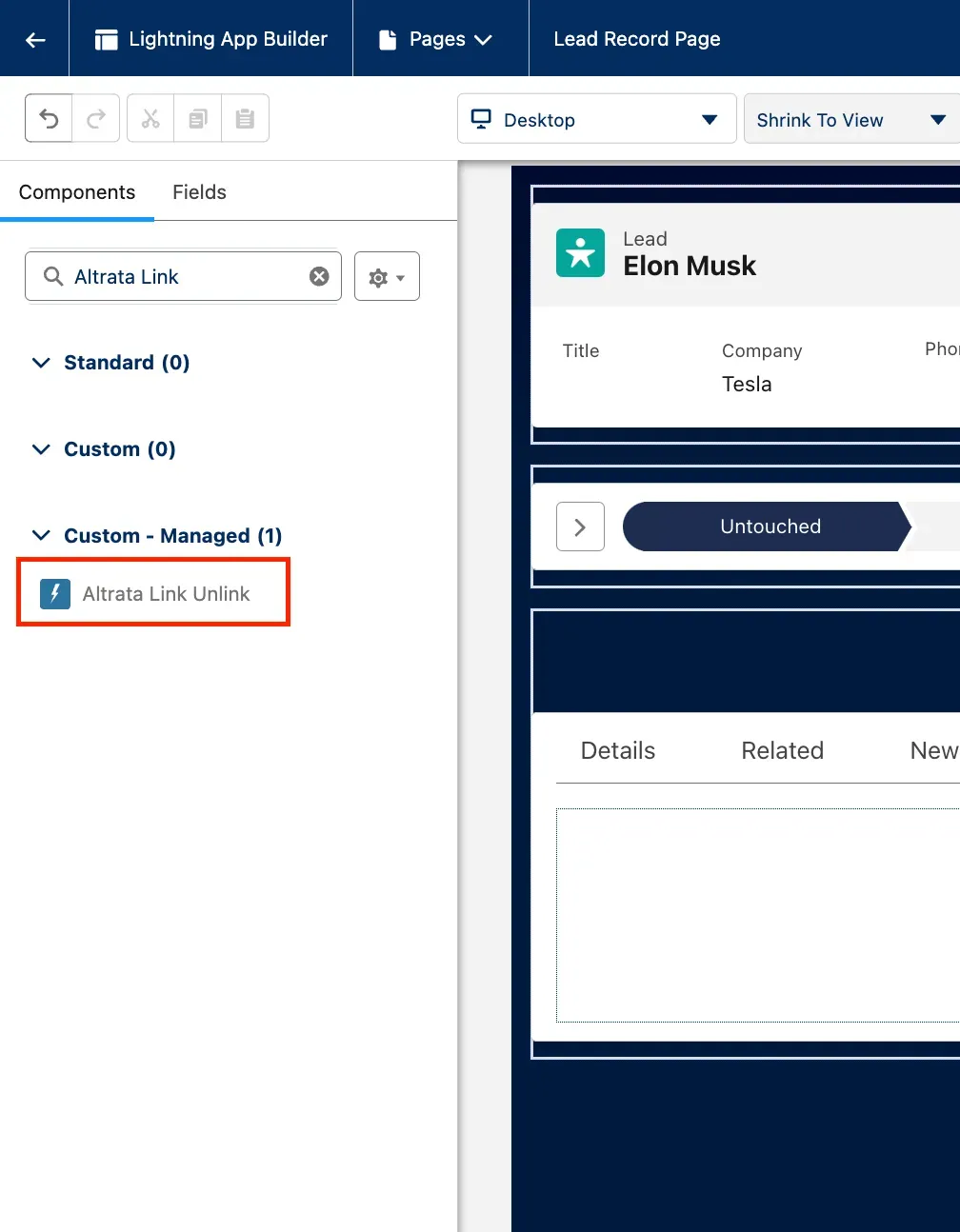
Click and drag the component to your desired location on the page. We recommend the right rail of your page layout if your layout supports it. Otherwise, we recommend at the top of your Altrata tab.
Altrata Detail Components
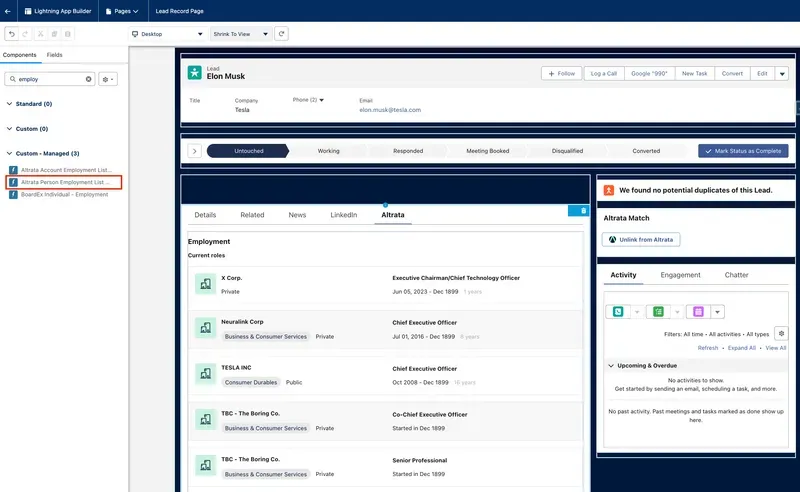
The managed package offers two methods for displaying Altrata data: either as a single element or as customizable individual components. In most cases, we recommend implementing the former, however, the latter can be leveraged when certain data points are not relevant or should not be displayed for any reason.
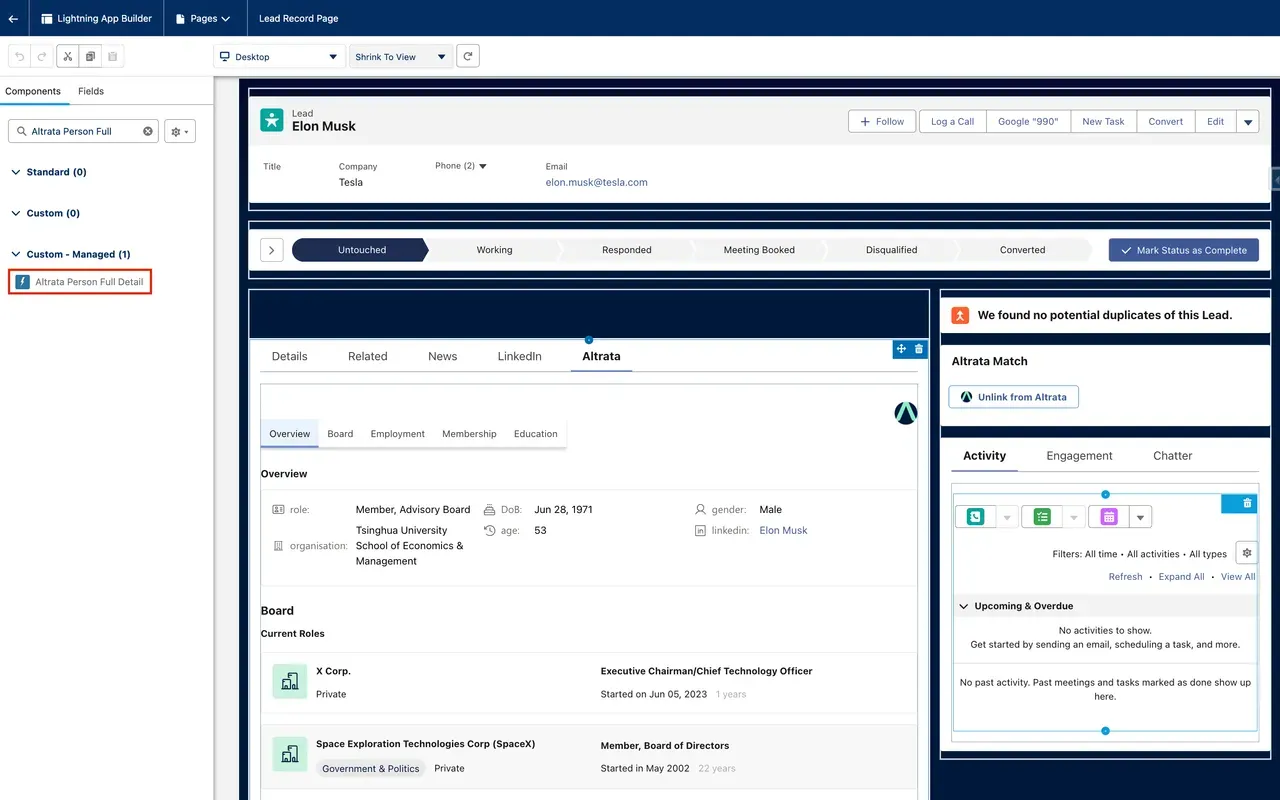
In the left-hand rail search bar under Components, type Altrata Person Full Detail for Leads, Contacts, and Person Accounts. For Accounts, type Altrata Account Full Detail.
Ensure you are using the correct element for the object, otherwise, data will not display as expected.
Click and drag the component to your desired location on the page. We recommend within the Altrata tab you created earlier in this guide.
Click Save.
Step 5 - Bulk Matching 🟢 Recommended
While records can be matched manually, it is highly recommended that the automated bulk matching be initiated for the best experience.
Bulk matching is an automated process that matches your Salesforce records to Altrata. This is an asynchronous process. Duration depends on the size of your database — ~2-3 hours per 100,000 records. Matches are updated in three different schedulers:
- Daily Job – will screen only new/updated records
- Weekly job – will screen only no match records
- Monthly Job – will screen only matched records
Do not run bulk matching until Field Mapping is fully configured. This is your last chance to catch missing fields until the next bulk match run (especially the foundation brand Person/Org ID's, if you're migrating from BoardEx, RelSci, or Wealth-X).
- Open the Altrata Settings tab from the App Launcher.
- Click the Match Management tab.
- Click Start Matching.
- Confirm on the pop-up.