Uninstalling the Altrata Salesforce App
4 min
Uninstallation Process for Altrata Salesforce App
To ensure a smooth uninstallation of the Altrata Salesforce App, please follow the steps outlined below:
- Access the setup menu by clicking the gear icon located in the top right corner of your screen, and choosing "Setup".
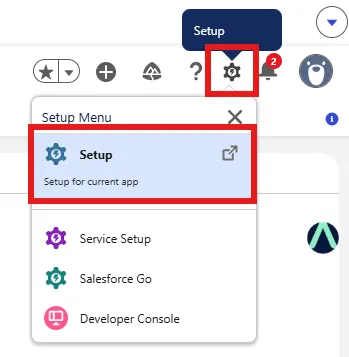
- Utilize the search functionality by entering "Installed Packages" in the search bar.
- Find the Altrata package in the list. Next to it, under the Actions column, select "Uninstall."
- Carefully review the warning message displayed at the top of the page to familiarize yourself with the components that will be removed upon uninstallation.

- At the bottom of the screen, you will have the option to retain a copy of the package data for 48 hours post-uninstallation. Make your selection and check the box indicating, “Yes, I want to uninstall this package and permanently delete all associated components."
- Proceed by clicking the "Uninstall" button.
The package uninstall process may prompt you to remove any related Altrata Salesforce App components such as Visualforce pages, and fields embedded into your pages and workflows. Once the App dependencies are removed, you can go ahead and retry the uninstall process again.
- Upon completion, navigate back to the Installed Packages section where you should observe a new table labeled "Uninstalled Packages," indicating the Altrata package with a status of "Requested Uninstall."
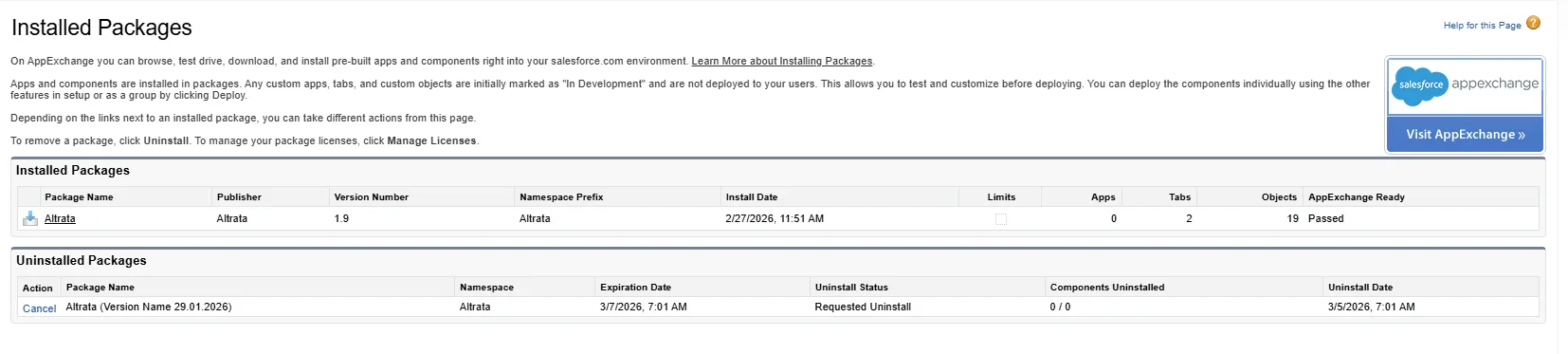
- Please note that the uninstallation process may take approximately 5-10 minutes. Refresh the page to monitor and confirm that the status has transitioned to "Uninstall Complete."

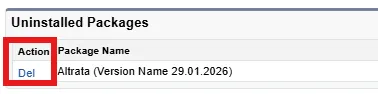
Note - To completely remove the package from your uninstalled packages list, please click "Del" under actions.