Advanced Search
The Advanced search feature in Altrata allows you to filter by different criteria for both people and organizations.
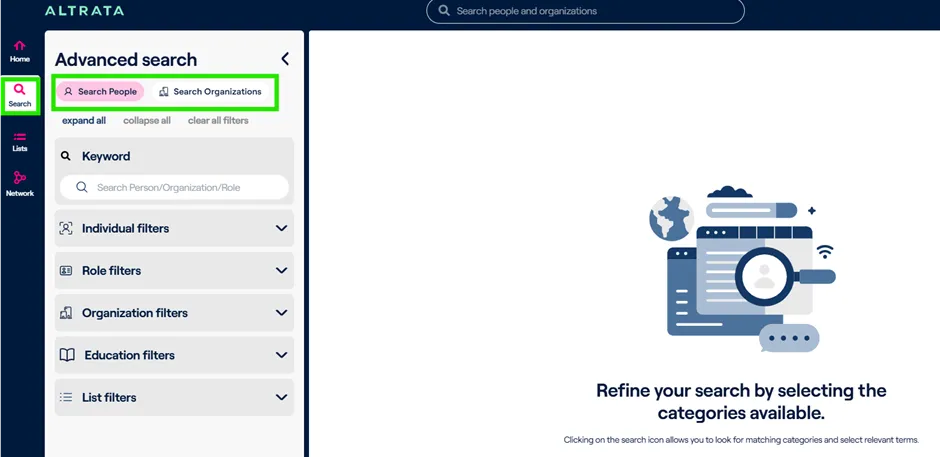
To access Advanced Search, click on the magnifying glass icon on the left side of the screen.
The default tab that you will land on is People, but you can toggle to Organizations as needed. Each will let you search by all the different data (i.e. criteria) that we currently have on offer and is available within your product suite.
These criteria will expand as new data is brought into the system but reach out to your Account Manager or Client Success if you cannot find a specific data point you need.
At the top you can click Expand all to see all the different criteria available, as well as collapse all and clear all the filters that you may have already input.
There's a keyword section to filter via a particular keyword, such a person’s name. Keyword is the broadest filter and generally it's better to pick the most specific filter(s) that's applicable.`
The number of these specific filters will increase, but currently include:
People Filter Options:
- Keyword
- Name
- Gender
- Age
- Earnings Indicator
- Relationship Status*
- Wealth Tier*
- Wealth Source*
- Networth*
- Role Category (e.g. CEO, CFO, Director, etc.)
- Role Type
- Employment
- Board
- Membership
- Government
- Committee
- Role Status (Current vs Past)
- Educational Institution Name
- Education Qualification
- Education Qualification Type (Degree Type)
- Education Qualification Year (i.e. Graduation Year)
- Donations*
- Donation Recipient
- Donation Cause
- Donation Amount
- Donation period
- Assets*
- Asset Class (Alternative Assets, Private holdings, etc.)
- Asset Type (Land, Livestock, Cars, etc.)
- Value of Asset
- Filter by List of People
- Filter by List of Organizations
Organization Filter Options
· Organization Name
· Organization Type (e.g. Public, Private, Charity, etc.)
· Sector
· Industry
· Country
· Employee Count
· Revenue
· Market Cap
· Filter by list of Organizations
*These fields are part of Altrata's Wealth data package and may not be included in your subscription. Please reach out to your account manager to learn more.
AND vs OR Logic
Advanced Search in Altrata generally uses AND logic when you input multiple criteria. So if you input criteria of:
· Role Category: CFO
· Age: 30 - 60
· Organization Type: Public
It will look for CFO’s who are at Public companies and are between the ages of 30 to 60 years old.
It does not currently support a search like: “Show me all CFOs at Public Companies who have a revenue between $500MM - $900MM OR CEOs at Private Companies who have a revenue between $100MM - $500MM”. You would instead need to runt wo separate Advanced Searches to accomplish that.
Checkboxes
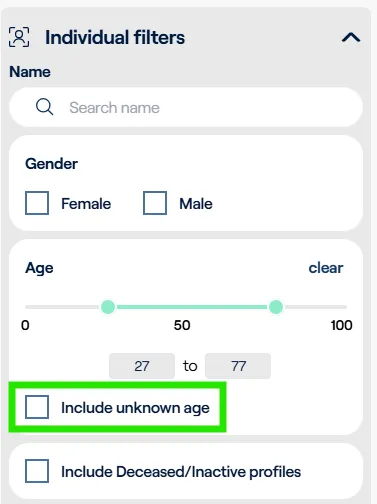
There are certain criteria that contain a checkbox that will include individuals/organizations that have NULL (empty) values for criteria you select. A good example of this is Age, where it gives you an option to include individuals that we do not have an age for.
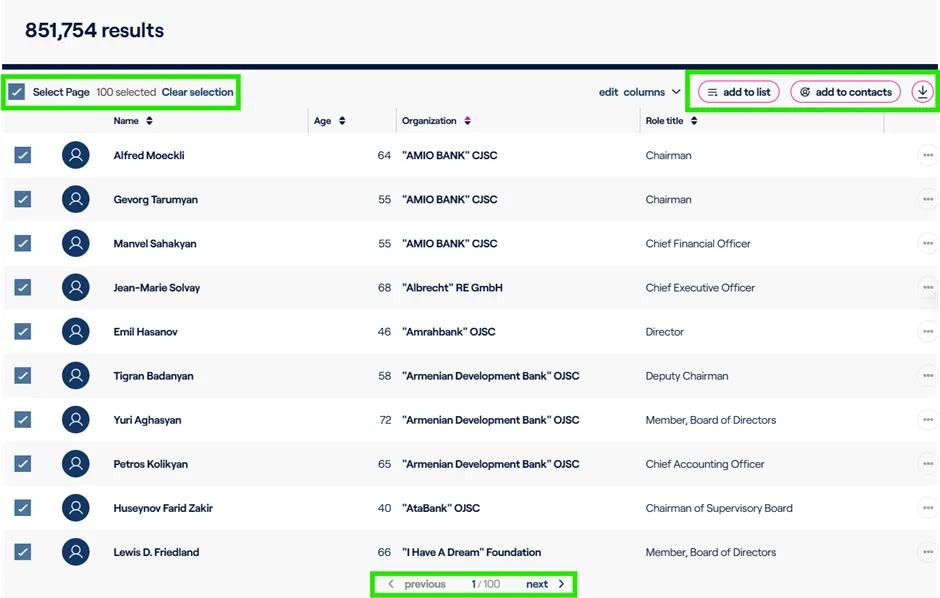
Advanced Search Results & Actions Once you have the results that you are looking for in Advanced Search, there's a few different options you have available.
You can select the various records or pages that meet your criteria. To select more than one page, just click Next at the bottom and continue to select the ones that you wish.If you need to reset, simply click Clear Selection and start over.
The select records can then be actioned by either:
1. Add these results to a list, either an existing list or by creating a new list.
2. Add the results to your contacts
3. Download the results.
Export & Download Limits There's a Max limit of 5000 results for each advanced search report
Other Advanced Search Capabilities
There are a couple other options available to you within Advanced Search.
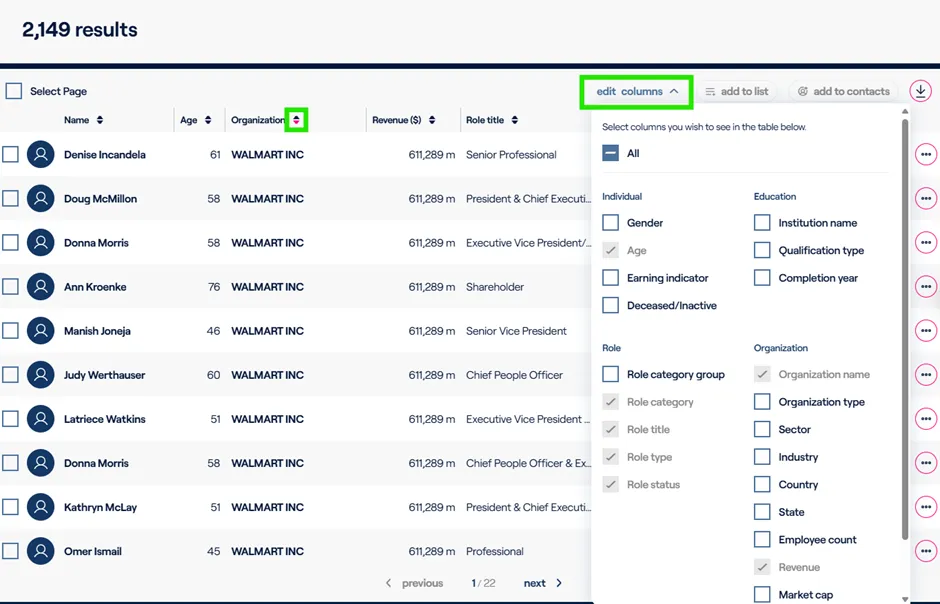
1. You can sort by the columns that appear.
a. If you wish to sort by the organization name, you can click on the arrow carrots next to each column name and it will sort them in either ascending or descending order.
2. Edit columns or add additional columns to the advanced search results
a. You can include additional organization details, education details, and other biographical information to the results which will also be included in the export/download of the results.