Altrata User Guide
Authentication and Login
Altrata prioritizes security, so to login to the Altrata web application for the first time there are 3 steps to complete:
- You will receive a Welcome Email which will contain a temporary password that you must use within 72 hours to set your own password.
- Altrata will direct you back to the login screen to login with your newly set password
- You will be prompted to set up MFA (Mult-Factor Authentication) and input an MFA code. This requires you to have an Authentiator Application installed on your mobile device such as Microsoft Authenicator or Google Authenicator which are available on iOS or Android devices.
-
If your organization has set up SSO or SAML authentication, then please reference our guide:
Alternatively, you can reach out to your Account Manager or Organization’s point of contact for specifics.
If you have any issues logging into the system or accessing your account, please do not hesitate to reach out to our Client Success team at [email protected].
Home page
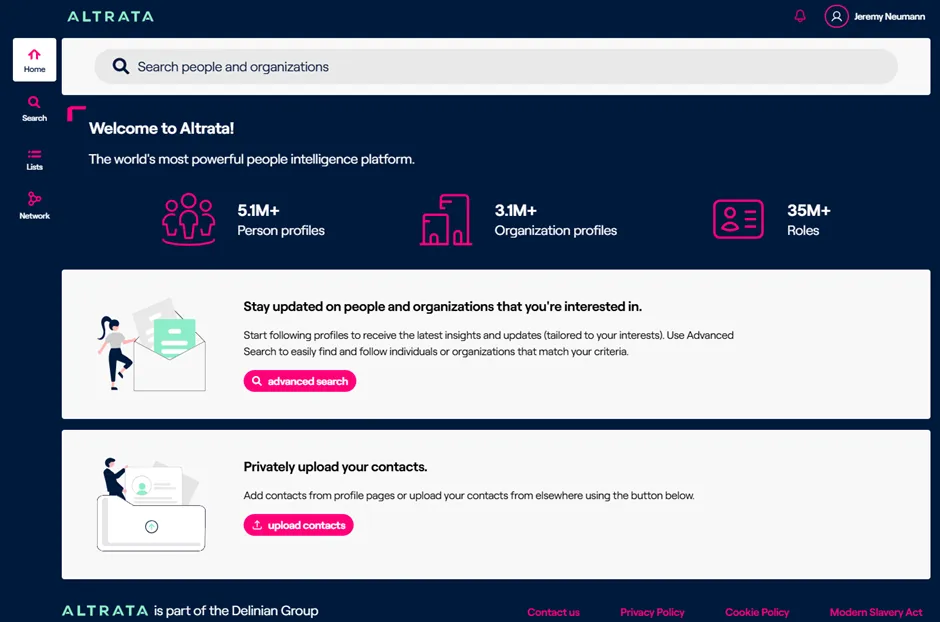
When you first login, you'll land on the Altrata homepage. This will give you access to all the tools that you can leverage for your workflows & research.
The homepage contains high level overview of our dataset to ensure you are kept apprised as new data changes are made.
At the top you will see a quick search bar which will allow you to search our data set, both organizations and people, and on the left you'll see the various options available for different tools that you can access.
Contacts (Relationships)
Contacts are an integral part of the Altrata experience. It allows you and your colleagues to see who has the best connections to a person or organization. Therefore, we strongly recommend loading in your contacts from at least one source, if not multiple sources.
Contacts (aka Relationships) are people who you have a relationship withwithin in some form or another. It could be a past colleague, current colleague, someone you've sat on a board with, a personal friend, etc..
Some of the most common source for Contacts are LinkedIn connections, Outlook Contacts and CRM relationships (e.g. Salesforce).
If you are instead leveraging Contact on behalf of someone, such as a Board Member or Donors, feel free to reach out to our Client Success team to discuss how best to accomplish this: [email protected]
Due to our matching logic you never have to worry about duplicates being formed if you load in multiple sources of Contacts.
To load contacts into the system click the Shortcuts option to go directly to the Contact Upload page, or click Network on the left side of the screen.
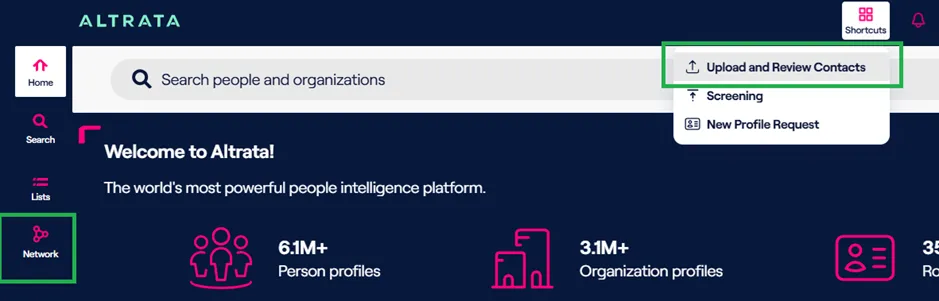
This will open your personal network.If this is your first time using the system, it will be empty.
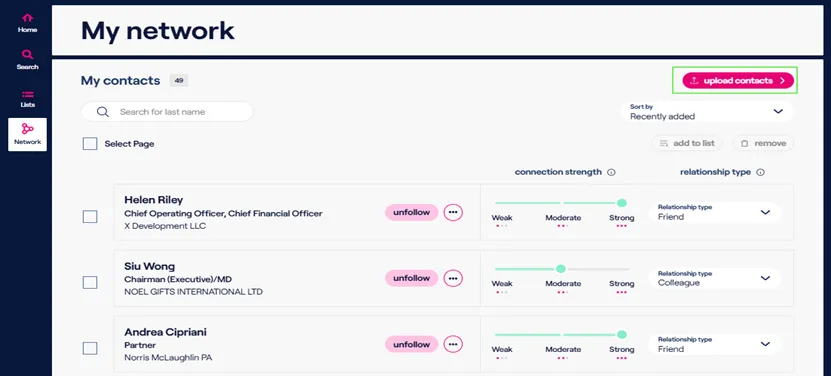
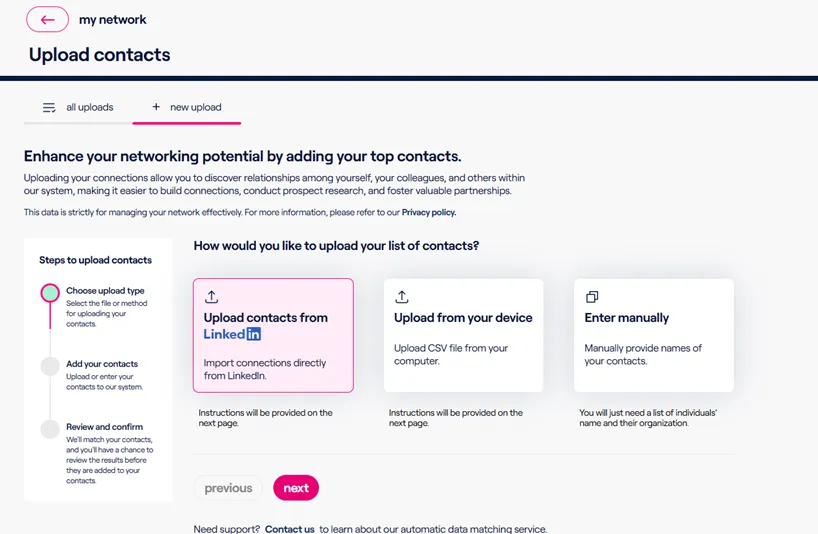
You can then click Upload Contacts which will pull up the Upload Contacts page. From there, you can upload your LinkedIn connections, import contacts from other sources using the standard Altrata CSV template, or enter the contact data manually.
You can click on any option based on your needs, then click Next and follow the on-screen instructions to upload your contacts into the system.
Once you upload your file into the system, you can view the status of all your uploads in the All Uploads tab. Use the View Results button to review the matching results once matching is complete.
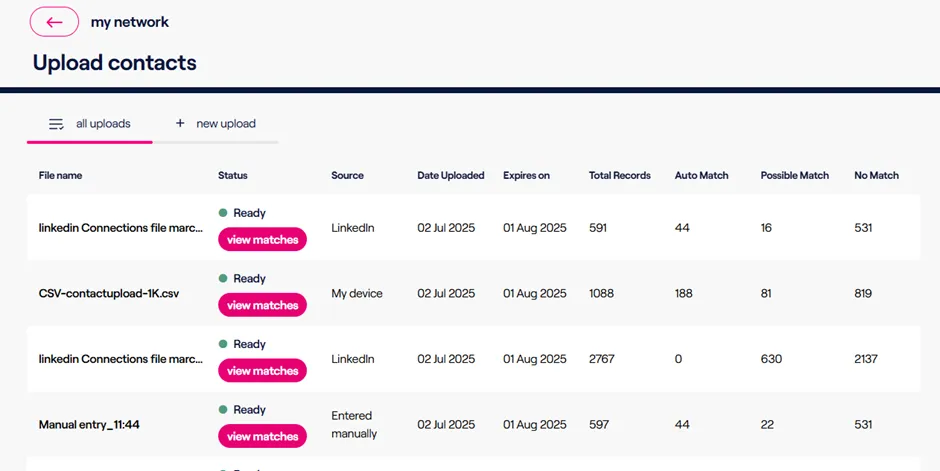
Contacts are matched against the Altrata data set, and there are three types of results that can happen when uploading a file.
Types of Matches:
- Match: Contacts (records) that Altrata is confident exist in our dataset and are the same individual that appear in the file you uploaded
- Possible/Potential: Contacts that the system was not 100% confident in, but believe have a match to a profile(s) in the system. This type of match requires manual confirmation from the user.
- No Match: Contacts from your file that either do not exist in the Altrata dataset or that we could not match confidently due to lacking information.
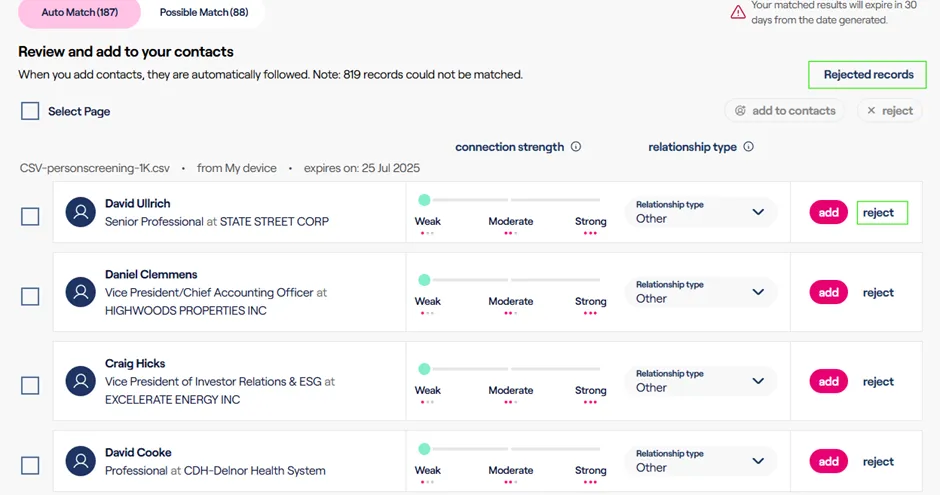
Matches that appear in Auto Match or Possible Match can be rejected, ensuring they do not appear again as matches for that request.
You can view rejected records by clicking the Rejected Records link on the page, which also allows you to undo a rejection and add them to your contacts.
Editing Contacts
Once you load in Contacts, you can edit them.
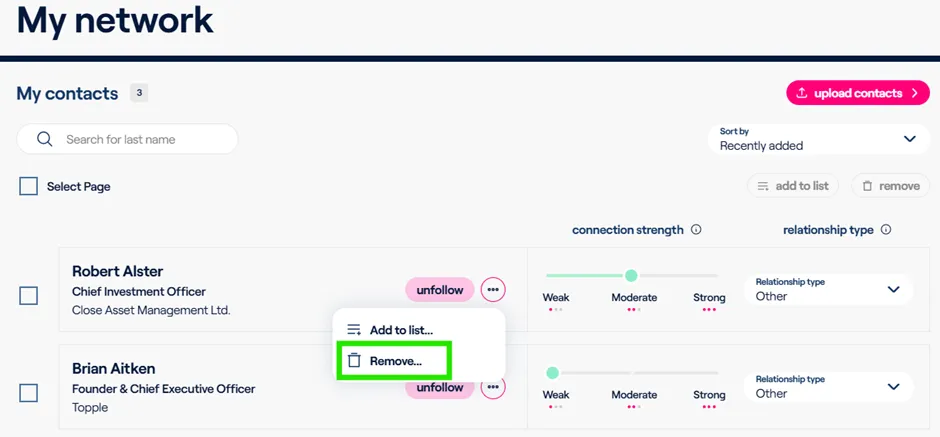
If you click on the Network tab, your contacts will appear.You can upload more connections or contacts here, but you can also adjust the existing ones you have. Whether you wish to remove them because they are no longer a relationship or whether you wish to adjust the connection strength of a particular connection.
Removing a Contact
To remove a Contact from your account, click on the ellipsis next to the profile and select “Remove”
Editing Connection Strength
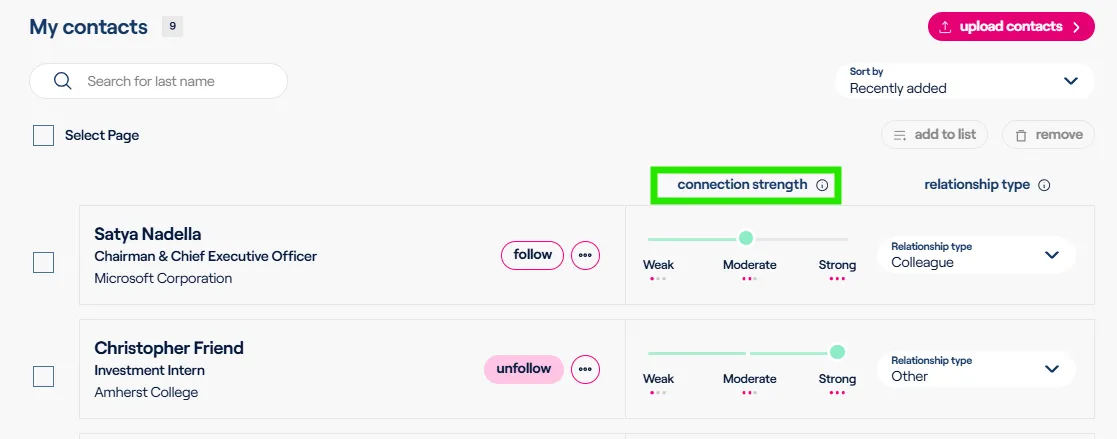
Connection strength is an optional setting that allows you to better denote how well you know a particular contact.
For example, if I know Robert I can easily say that he's a weak, moderate, or strong connection strength to better denote to myself and colleagues how well I know him.
If you need a reference for what the connection strength types pertain to:
- A weak connection strength is someone that maybe you've met at a conference once or twice.
- A moderate connection strength is an old colleague who you've worked with in the past.
- And a strong connection strength is someone that you interact with relatively frequently. Someone that you'd be very comfortable calling or emailing and can expect a response back in a reasonable time frame.
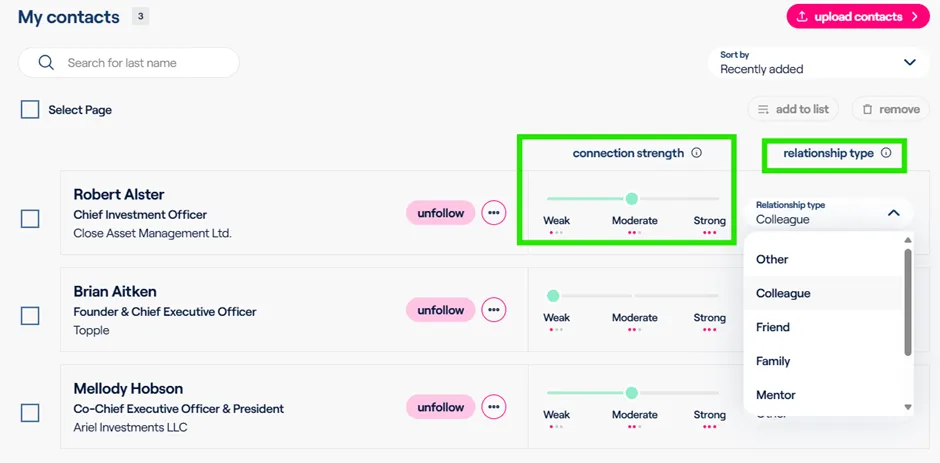
And you could also adjust the relationship type if you wish. Which allows you to indicate to yourself and to your colleagues who this contact is to you (e.g. Colleagues vs Family)
Loading in Contacts to the Altrata is vital, so if adjusting these settings will detract from adoption for your firm then we recommend skipping them as they are optional.
Profiles
Altrata has a significant number of profiles on both individuals and organizations. Over 5 million profiles for people and 3 million profiles for organizations.
To look for these people & organizations you can type their name(s) in the smart search bar at the top of the app. A smart search drop down will appear, which will bring up results as you type to help you narrow down who you're looking for.You can toggle between showing all the results, people, or organization.
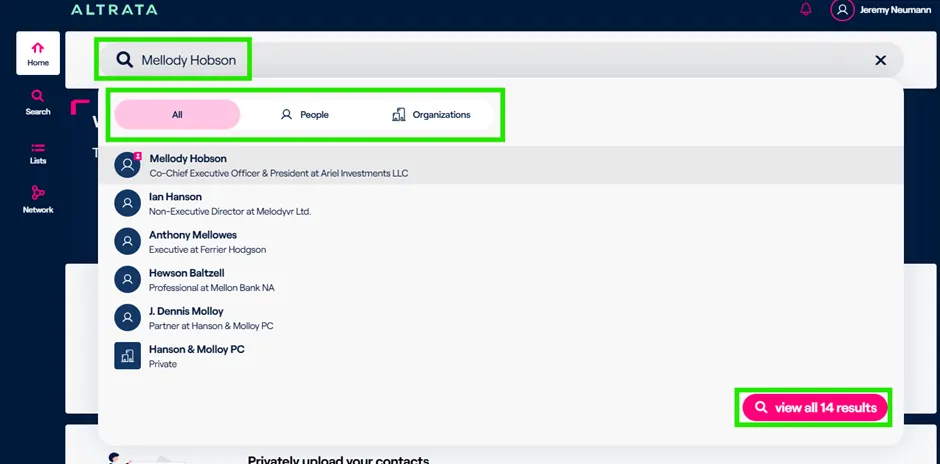
If you can't find someone you're looking for click View All Results, which is at the bottom of the drop down. This will pull up all the results so you can review it and see if the person/organization you're looking for is in the expanded results set.
To get access to the person you are looking for, you can click on their record from the drop down and it'll pull up their profile.
The profile will look very similar for all people in all organizations and vary depending on the types and quantity of data that we have for each person or organization.
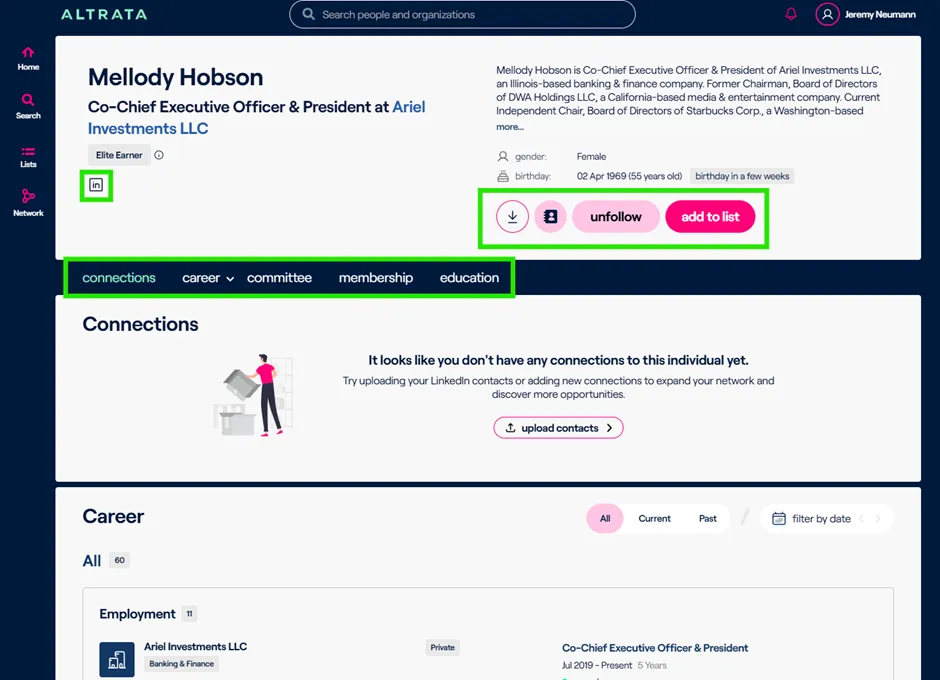
For people profiles, you have their name and kind of top role at the top left of the profile.
You will have a biography at the top right and then some options below:
- Downloading the profile to use & share offline
- Adding a person to your Contacts manually.
- Follow a profile for Alerts
- Adding a profile to a List(s)
The connections module will show the best pathway or best connection to the individual (profile) in question that you're looking at whether it's from you or your colleagues.This will depend on your organization's relationship sharing settings.
There are multiple sections in a profile:
- Career
- Connections
- Committees (Boards)
- Membership
- Education
- Individual Network
- Assets*
- Philanthropic Donation*
- Political Donations*
- Family Details*
You can filter many of these sections based off current or past status and by date, to look for positions or roles that someone's held within a certain span of time.
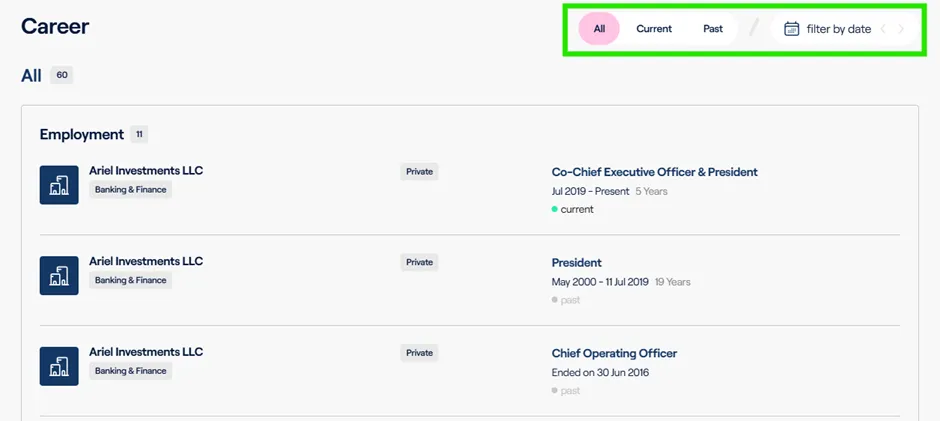
On each profile there is a bar at the top that will allow you to jump to any section quickly, so you do not have to scroll.
Additional data will be made available on profiles and continually expanded as we progress through our Altrata road map. There are also different types of data available depending on your use case. If you are someone that is focused more on professional data such as roles and boards, we have a data set that's most applicable to you. But if you're an organization or person who focuses more on the wealth side and wants to look at donations or how wealthy someone is, we also have a data set for you.
You can combine these data sets and they will appear on the same profile. Feel free to reach out and talk to your account manager for more details about what types of data are available and what our data road map looks like.
*These fields are part of Altrata's Wealth data package and may not be included in your subscription. Please reach out to your account manager to learn more.
Connections
What are Connections?
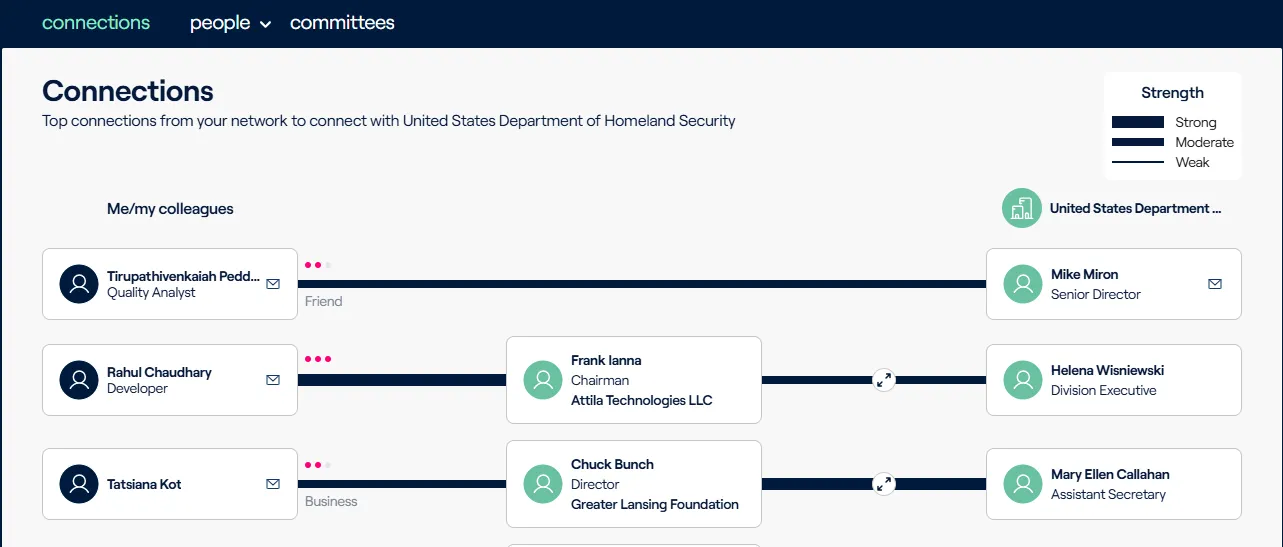
Connections show you and your firm's best paths & introductions points to a particular person or organization within the Altrata dataset. It effeciently highlights connections your colleagues have that you may be unaware of, and most importantly uncovers who your connections may know.
In short, it answers the question "Who can introduce me to this target?"
Where can I find Connections within Altrata?
You can find Connections within the "Connections" module on an Organization or Person profile.
To see more of these Connections you can click the "See more connections" button at the bottomof the module to open a new page.
What are the different types of Connections?
There are 3 different types of Connections within the Altrata platform.
- Your 1st Degree Connections: These are individuals within the Altrata platform that you have a direct relationship with.
- Colleagues’ 1st Degree Connections: Individuals that your colleagues have indicated they have a direct connection with.
- 2nd Degree Connections: Using Altrata’s Relationship Engine, these are paths that show who you and your colleagues’ contributed connections likely know.

What is Connection Strength?
There are 2 different types of Connection Strengths:
- Contributed Connection Strength: This indicates how well you or your colleagues know someone directly based off, and is determined when connections from your firm are uploaded to Altrata.
- These Strengths are:
- Strong
- Moderate
- Weak
- 2nd Degree Connections Strength: This is the Connection Strength based off of Altrata's algorithm for determining who knows who within our dataset and solely uses Altrata captured information, not any proprietary data from your firm.
- These Strengths are:
- Likely Strong
- Likely Moderate
- Likely Weak
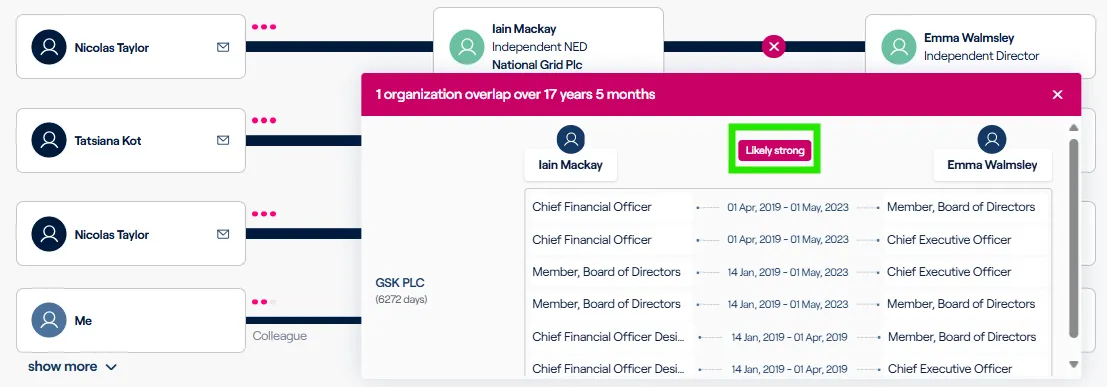
How does Altrata's determine 2nd Degree Connection Strength?
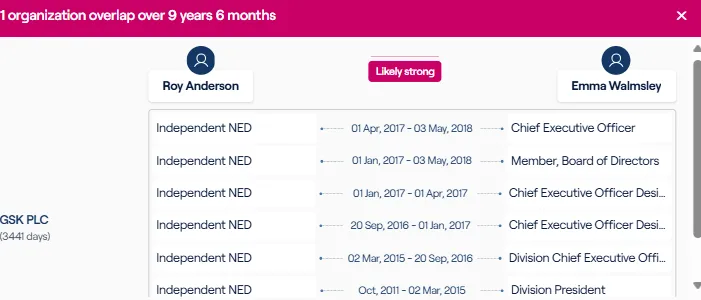
Altrata looks at all the Employment & Board data that we have captured for all the people we have profiled in the system. It then looks for commonalities between these profiled individuals, specifically overlaps with their employment & board history.
This includes but is not limited too:
- Number of overlapping roles at the same organization
- Seniority of those roles
- Time that the individuals overlapped at their roles
- How recent the overlap(s) were
Based off of these factors Altrata will denote how likely a profiled person knows another profiled person in our system.
This information is then displayed for your use by clicking the "expand" icon on the 2nd degree connection
Individual Network
What is Individual Network?
Individual Network is a module/widget that is shown on every Person profile within the Altrata database. It displays the profiled Altrata individuals that profiled individual has potential access to. It is powered by the Altrata relationship graph engine which identifies likely connections between the over 5MM+ profiles in the Altrata database based on overlapping employment & board history.
It allows users to filter down to specific connection strengths, as well as change the view from "Chart" (see below)

To the "Table view"

Advanced Search
The Advanced search feature in Altrata allows you to filter by different criteria for both people and organizations.
To access Advanced Search, click on the magnifying glass icon on the left side of the screen.
The default tab that you will land on is People, but you can toggle to Organizations as needed. Each will let you search by all the different data (i.e. criteria) that we currently have on offer and is available within your product suite.
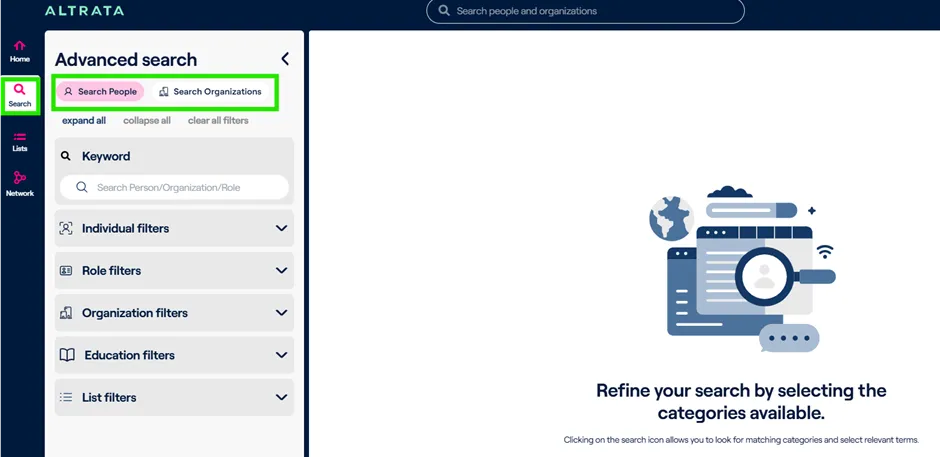
These criteria will expand as new data is brought into the system but reach out to your Account Manager or Client Success if you cannot find a specific data point you need.
At the top you can click Expand all to see all the different criteria available, as well as collapse all and clear all the filters that you may have already input.
There's a keyword section to filter via a particular keyword, such a person’s name. Keyword is the broadest filter and generally it's better to pick the most specific filter(s) that's applicable.`
The number of these specific filters will increase, but currently include:
People Filter Options:
- Keyword
- Name
- Gender
- Age
- Earnings Indicator
- Relationship Status*
- Wealth Tier*
- Wealth Source*
- Networth*
- Role Category (e.g. CEO, CFO, Director, etc.)
- Role Type
- Employment
- Board
- Membership
- Government
- Committee
- Role Status (Current vs Past)
- Educational Institution Name
- Education Qualification
- Education Qualification Type (Degree Type)
- Education Qualification Year (i.e. Graduation Year)
- Donations*
- Donation Recipient
- Donation Cause
- Donation Amount
- Donation period
- Assets*
- Asset Class (Alternative Assets, Private holdings, etc.)
- Asset Type (Land, Livestock, Cars, etc.)
- Value of Asset
- Filter by List of People
- Filter by List of Organizations
Organization Filter Options
· Organization Name
· Organization Type (e.g. Public, Private, Charity, etc.)
· Sector
· Industry
· Country
· Employee Count
· Revenue
· Market Cap
· Filter by list of Organizations
*These fields are part of Altrata's Wealth data package and may not be included in your subscription. Please reach out to your account manager to learn more.
AND vs OR Logic
Advanced Search in Altrata generally uses AND logic when you input multiple criteria. So if you input criteria of:
· Role Category: CFO
· Age: 30 - 60
· Organization Type: Public
It will look for CFO’s who are at Public companies and are between the ages of 30 to 60 years old.
It does not currently support a search like: “Show me all CFOs at Public Companies who have a revenue between $500MM - $900MM OR CEOs at Private Companies who have a revenue between $100MM - $500MM”. You would instead need to runt wo separate Advanced Searches to accomplish that.
Checkboxes
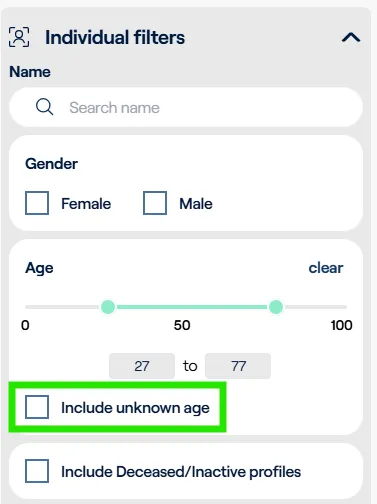
There are certain criteria that contain a checkbox that will include individuals/organizations that have NULL (empty) values for criteria you select. A good example of this is Age, where it gives you an option to include individuals that we do not have an age for.
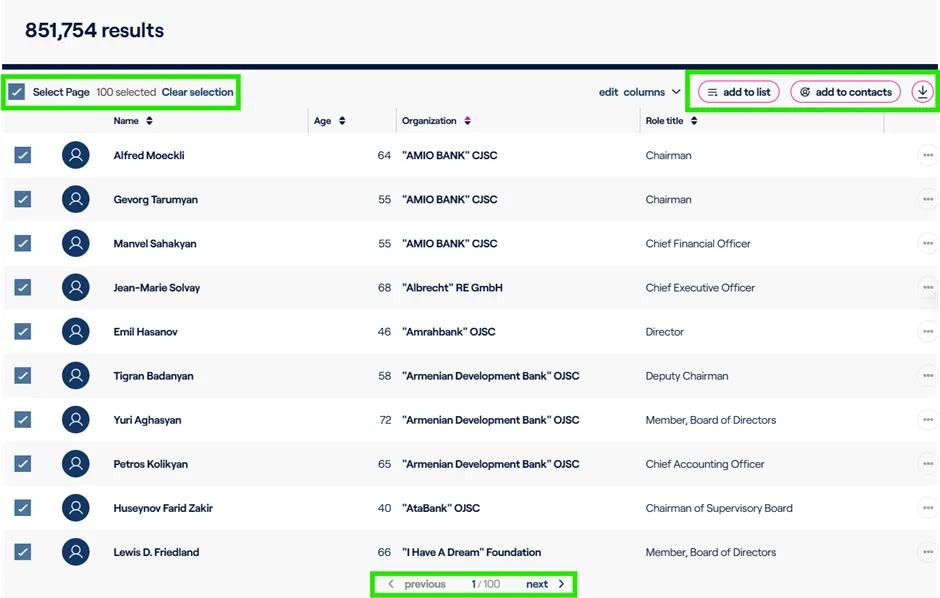
Advanced Search Results & Actions Once you have the results that you are looking for in Advanced Search, there's a few different options you have available.
You can select the various records or pages that meet your criteria. To select more than one page, just click Next at the bottom and continue to select the ones that you wish.If you need to reset, simply click Clear Selection and start over.
The select records can then be actioned by either:
1. Add these results to a list, either an existing list or by creating a new list.
2. Add the results to your contacts
3. Download the results.
Export & Download Limits There's a Max limit of 5000 results for each advanced search report
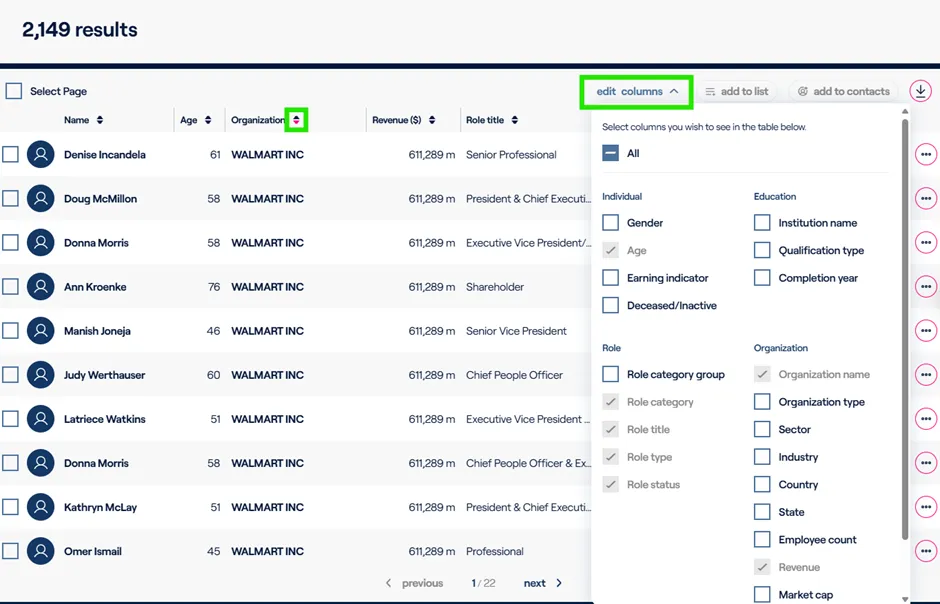
Other Advanced Search Capabilities
There are a couple other options available to you within Advanced Search.
1. You can sort by the columns that appear.
a. If you wish to sort by the organization name, you can click on the arrow carrots next to each column name and it will sort them in either ascending or descending order.
2. Edit columns or add additional columns to the advanced search results
a. You can include additional organization details, education details, and other biographical information to the results which will also be included in the export/download of the results.
Lists
Lists are your way to organize and manage data within the Altrata system. These can be lists of people or organizations, and is frequently used to manage targets, prospects, donors, etc.
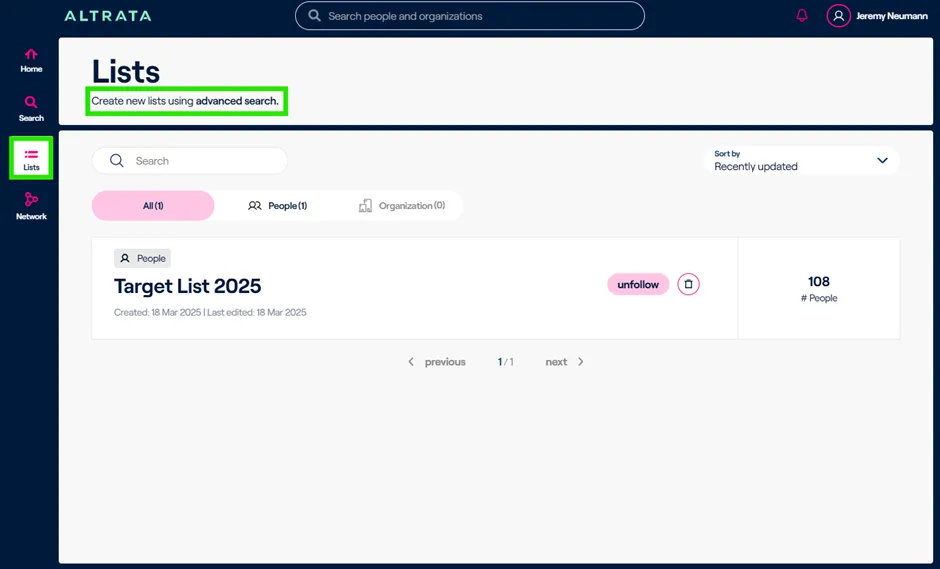
Currently, the only way to create lists is via Advanced Search or via profiles by adding individual profiles to an existing or new list.Eventually we will allow you to upload a CSV file to create a list from external information (e.g. a target list from your CRM).
Once a list is created, there's a couple options you have.
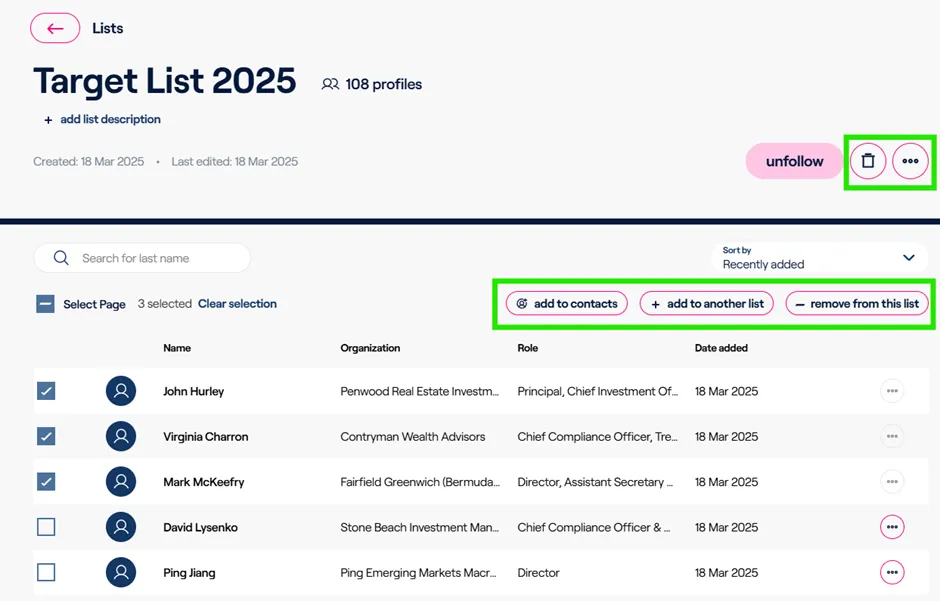
1. You can click into the list itself, add a list description, edit the list details such as renaming the List.
2. You can delete an existing list as well as perform other actions within the list, such as removing certain names or entities from the list, adding them to another list, or adding them to a contact.
Alerts
One of the other items you can do with lists and profile is add them to your alerts by “Following” them.
These “Follow” buttons appear within certain screens throughout the Altrata platform.
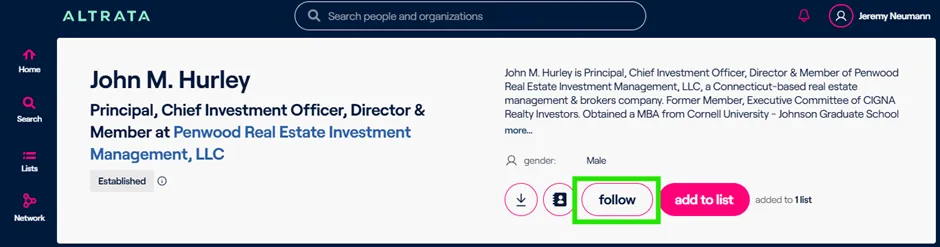
Alerts currently are sent via e-mail and will notify you of important career moves and board moves. These include:
· Promotions
· An individual exiting a company
· An individual joining a company
· An announcement of a future appointment
You can adjust your alert settings by clicking the person icon at the top right by your name, going to My Account and going to Alerts.
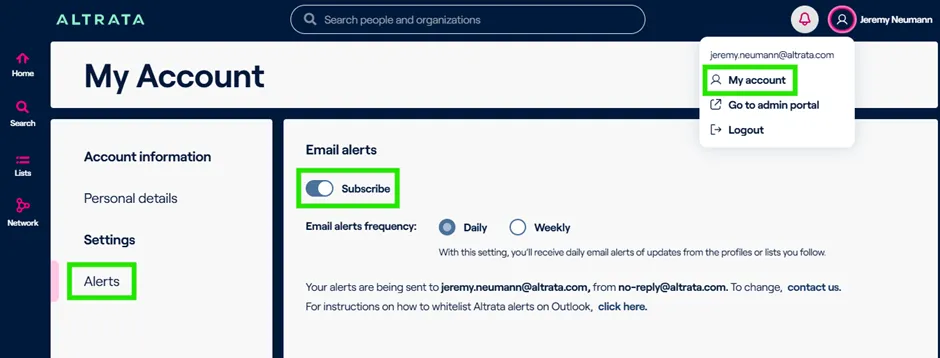
And you can ensure that you are subscribed to alerts and then also change the frequency at which you get them, such as daily or weekly.
Pathfinder
The current version of Pathfinder (November 2025) enables you to path between any two entities and uncover pathways between them. It leverages Altrata's new relationship graph engine that identifies relationships between the 5MM+ individuals in the database based on employment & board overlaps.
Enter the Entity you wish you start the Path "From" and the entity you are targeting in the "To" field, and if there are paths available they will appear in the results below.

Contact our Support Team
If you need any help during your experience of using the Altrata web application, you can contact our support team by the Contact Us button at the bottom of the screen, or by interacting with our various support mechanisms, such as our live chat, and our Resource Center, which contains various articles and information on how to use the platform and other questions you may have about the data set.
Telephone:
- US: +1 888 257 6082
- UK: +44 20 4539 4475
Email: [email protected]
Other information
If you or your organization have additional questions about Altrata whether it pertains to privacy, informational security, or contract questions, please reach out to your account manager or client support and we’ll be happy to answer them to the best of our ability.