Screening
What is Screening?
The screening tool in the Altrata platform enables you to upload & match files of People or Organizations to the Altrata dataset, which can then be created as Lists for use in other tools within the platform.
Common use cases
All Screening related use cases begin once you have uploaded your file and created a List from it. This list can then be used to:
- Follow the people & organizations you care about to receive daily news & alerts emails on them
- Further qualify & screen your List via additional criteria by leveraging Advanced Search. This can include but is not limited to:
- Identify Wealthy individuals within your List
- Identify individuals based on their career & board histroy
- Search within your list based on individuals locations
- Discover individuals that have made donations to a specific cause in the past
- Path to your newly created
What information does Altrata need to match my file?
Altrata's matching algorithm will do it's best to make a match to the dataset based on the information you provide. Howver, the best chance to make a successful match is to provide at least one of the below data point(s)
- First name + Last Name + Organization name
- First Name + Last Name + Address
- Email Address
- LinkedIn URL
- Identifiers from one of the other Altrata brands (e.g. BoardEx)
Ensure that the "client_supplie_id" column contains values. If you do not have values to supply then simply use placeholder numerical values (e.g. 1, 2, 3, 4)
These values are only used for that specific Screening attempt and can be used again in another Screening
One of above fields is required for the best chance of a match to be made, but Altrata also supports matching based on the below fields:
- First Name
- Middle Name
- Last Name
- Organization Name
- Role Title
- Work Email
- Personal Email
- Address
- City
- State
- Zip Code
- Country
- Age
- Date of Birth
- LinkedIn URL
- BoardEx Person ID
- RelSci Person ID
- Boardroom Insiders Person ID
- Wealth-X Person ID
- Wealth Engine Person ID
- Altrata ID
Example Screening File
What file formats & sizes does Screening support?
For a file to successfully upload it must be in a Comma Separated Value (CSV) format and conform to Altrata's screening template, which can be downloaded here.
The process supports uploading files ranging in size of up to 100k records
How to upload a file for Screening
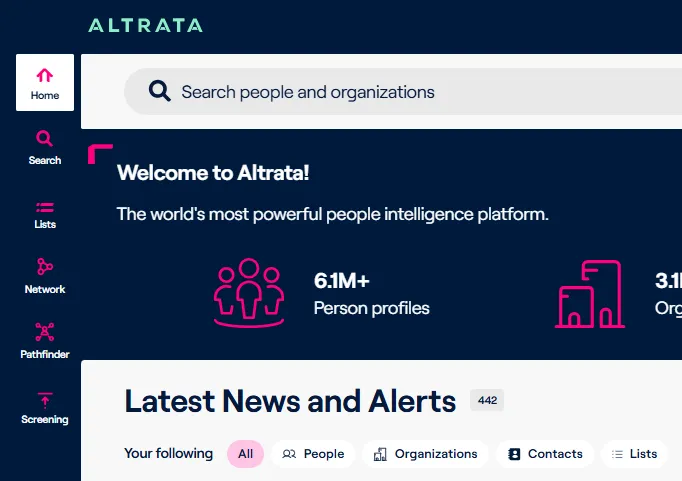
- Navigate to the Screening tool
- Select the "New Screening" button
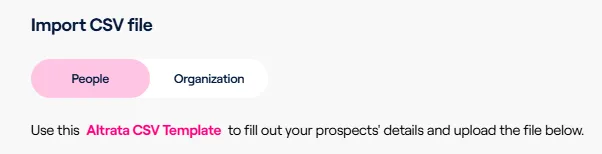
- Select the "People" or "Organization" option based on the file you wish to upload
- Copy the file or data you want to upload into the "Altrata CSV Template". Common sources of this data are:
- Prospect lists from your internal CRM (e.g. Salesforce)
- Client lists from internal trackers
Altrata's matching algorithm will do it's best to make a match to the dataset based on the information you provide. However, the best chance to make a successful match is to provide at least one of the below data point(s)
- First name + Last Name + Organization name
- First Name + Last Name + Address
- Email Address
- LinkedIN URL
- Identifiers from one of the other Altrata brands (e.g. BoardEx)
Ensure that the "client_supplie_id" column contains values. If you do not have values to supply then simply use placeholder numerical values (e.g. 1, 2, 3, 4)

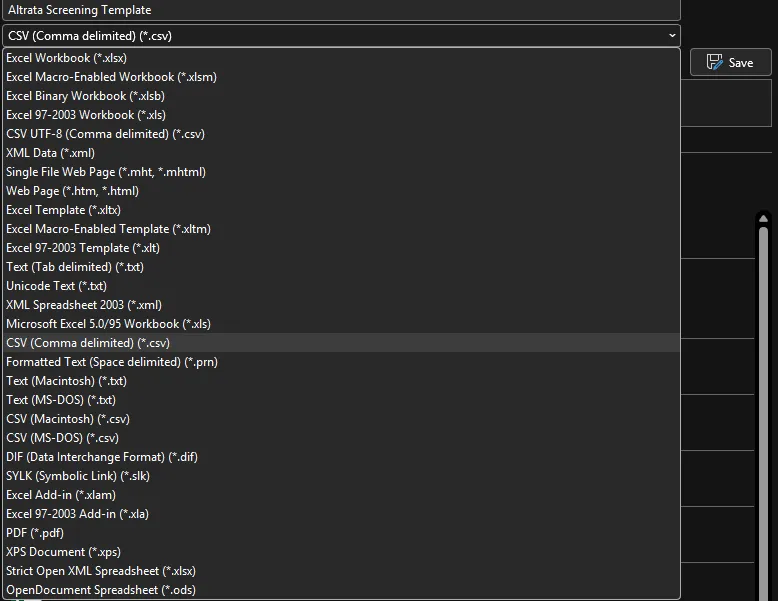
- Save the file as a Comma Separated Value (CSV) file
- Select the file & click "Start Screening"
The file will now go through Altrata's matching process and may take anywhere between 20-60 minutes to complete depending on the size of your file. You can navigate away from the page, and Altrata will send you an email when the process is complete.
- Once the matching process is complete you can select an existing List to upload your results to OR create a new list
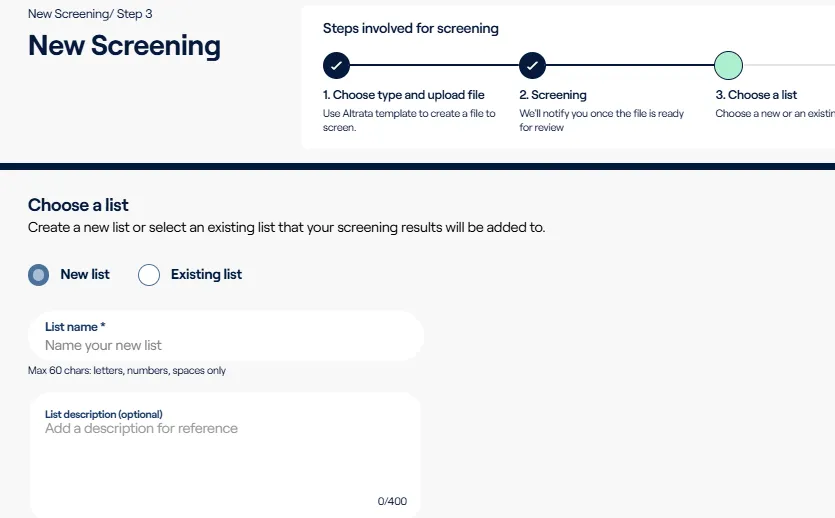
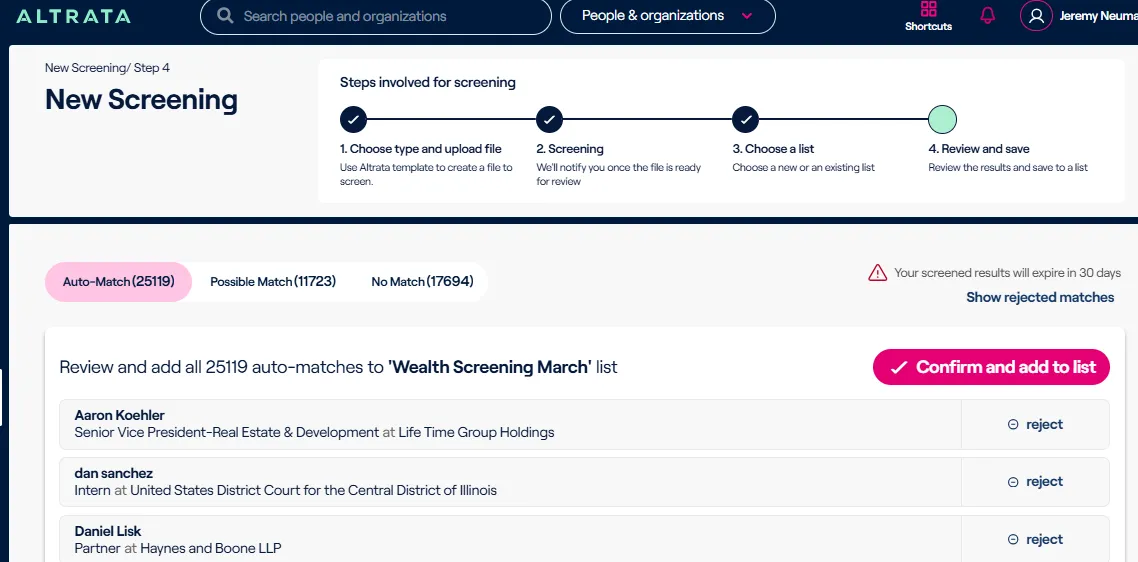
- You will then be able to review the matches that Altrata was able to make. These include:
- Auto-matches:
- Individuals or Organizations from your file that Altrata confidently matched to an entity in the dataset
- Possible Matches
- Individuals or Organizations from your file that Altrata was less confident in or had multiple possible matches in the system. These require your review before being added to the list.
- No Matches
- Entities from your file that Altrata was unable to find any match to in the system