SSO
Overview
By leveraging SAML, users can be easily authenticated to login to Altrata through your existing corporate SSO solution (the identity provider).
Altrata supports the following:
- SAML 2.0
- Service Provider (SP) Initiated authentication
- Signed tokens using X509 certificates with 2048-bit keys
- SHA-256 (minimum) as the signature/secure hash algorithm
- Just in Time user provisioning for new user accounts
The self-service password reset function will no longer work after SSO goes to production, as users will authenticate using their configured IdP.
We recommend that you communicate the change to your users to help them understand the changes that happen after implementing a production SSO configuration to Altrata.
Customer Prerequisites
- An Identity Provider (IdP), or Identity Access Management (IAM) solution (e.g. Azure AD, Microsoft AD FS, Entra ID) that supports:
- SAML 2.0
- Service Provider (SP) Initiated authentication
- An SSO App configured by the customer on their Identity Provider, referencing the attributes below from Altrata:
- Identifier (URN) (also referred to as Entity ID): urn:amazon:cognito:sp:us-east-2_WxqRzRqrX
- Assertion Customer URL: https://auth.altrata.com/saml2/idpresponse
- The configured SSO App would also have users, or internal security groups, assigned to it, and access to Altrata will be limited to those select users.
- An exported metadata XML file, or metadata URL, from the configured SSO app which will be shared with the designated Altrata account manager or point of contact. The provided metadata will be used by Altrata to configure the trust between the SP and IdP.
SAML Claim Configuration
Altrata expects the following claims in the token returned from the IdP in the format noted. While not all claim types are required, the additional claims are useful to help Altrata better support users and troubleshoot any issues.
All claim types below are case sensitive and must be sent using the format specified in the Claim Type.
Claim Name | Data | Required | Description | Claim Type URI |
|---|---|---|---|---|
Name ID | User Identifier | TRUE | Unique and immutable value that identifies the user. It usually contains the user’s email address, which is the recommended convent | |
emailaddress | Email Address | TRUE | The user's email address | |
givenname | First Name | TRUE | The user's first name | |
surname | Last Name | TRUE | The user's surname | |
department | Department | FALSE | Department data. Used for allocating product features. | |
jobtitle | Role | FALSE | Job title / Role data. Used for allocating product features. | role |
country | Region | FALSE | Job title / Role data. Used for allocating product features and in some cases Region specific data. | region |
Common Identity Provider Configurations
Microsoft Entra
The following guide can be used for setting up an SSO application in Microsoft Entra.
The process of configuring an application to use Microsoft Entra ID for SAML-based SSO varies depending on the application. For any of the enterprise applications in the gallery, use the configuration guide link to find information about the steps needed to configure the application.
- Sign in to the Microsoft Entra admin center using an account with at least a Cloud Application Administrator role.
- Browse to Identity > Applications > Enterprise applications > All applications.
- Enter the name of the existing application in the search box, and then select the application from the search results. For example, Altrata SSO.
- In the Manage section on the left menu, select Single sign-on to open the Single sign-on pane for editing.
- On the Select a single sign-on method page, select SAML.
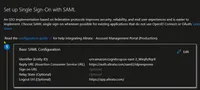
- On the Set up Single Sign-On with SAML page, edit the Basic SAML Configuration with the values below:
Identifier (Entity ID)
urn:amazon:cognito:sp:us-east-2_WxqRzRqrX
Reply URL (Assertion Consumer Service URL):
https://auth.altrata.com/saml2/idpresponse
Logout Url (Optional):
https://app.altrata.com/
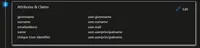
- Configure the expected claims as documented above:
- In the Set up Altrata SSO section, record the values of the Login URL, Microsoft Entra Identifier, and Logout URL properties to be shared with the Altrata team if needed.
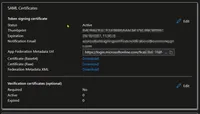
- You will then need to share the resulting metadata with us, by either:
- clicking on Download to generate the Federation Metadata XML, or
- copying the App Federation Metadata Url
and sending it to [email protected]
Testing Single Sign-On Access
The Altrata team will use the metadata provided to configure the SAML SSO settings against your provisioned customer account.
Once the Altrata Tech Support team has validated that SAML SSO is configured, follow these steps to test:
- Visit https://app.altrata.com/
- Enter your email address
- As this point, you will be redirected to your Identity Provider to be authenticated using your company/corporate credentials
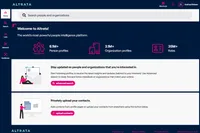
- Once you are successfully authenticated, you will be authorized and redirected to your Altrata account home page: